The professional’s operating system, in your hands.
Connect to leading booking platforms so every reservation, rate update, and guest message flows into one place.
The Calisto Difference.
You are not choosing another app. With Calisto Rentals you run your home on CalistoOS, the same operating system Calisto Agency runs every home on, built for hospitality, so nothing is left to chance.
Always Guest Ready.
Calisto Assure keeps your home verified and prepared at all times. You set its standards, see the photo proof, and act when it matters most.
 Assure InventoryTurn your home into a digital profile. Its rooms, contents, linen and supplies are kept room by room, with its photos, so you always know the exact contents and condition of your home.Open Your Owner Portal
 Assure QualitySmart checklists for your home, published once and worked room by room against its own reference photos. A failed item is flagged with its photo proof and becomes the work order that fixes it, so your home stays guest ready.Explorez Assure
 Proof, Not PromisesEvery turnover is checked against your home’s own reference photos before the next guest, so you see your home was ready without asking.
Keep your Bookings in Sync.
Calisto Sync is the channel manager built into CalistoOS. It keeps availability, pricing, and bookings aligned so you can grow distribution without adding chaos.
 Unified CalendarsOne calendar that Airbnb, Booking.com, Vrbo and your own booking site all sell from. A booking on one closes the date on every other, within seconds.Open Your Owner Portal
 Rates that Stay AlignedSet your prices, seasons and minimum stays once. Calisto Pulse moves your nightly rate with demand, inside the floor and ceiling you set, and Sync sends the right price to every channel.Open Your Owner Portal
 Your Own ListingsKeep using your existing Airbnb, Booking.com and Vrbo accounts. Connect each listing once: its reviews and ranking stay yours, and each booking pays you.Open Your Owner Portal
 Airbnb
 Booking.com
 Vrbo
Personalized Hospitality. Total Control.
Answer every message your guests send you from one list.
 Calisto InboxThe Airbnb message and the WhatsApp message in one thread, with the reservation beside it. Open a conversation to read it and answer.Open Your Owner Portal
 Calisto NavigatorThe guest app for digital check in, house information, chat, and upsells, fully connected to each booking. One link, and no app store.
 Calisto AccessA door code for the stay’s dates reaches your guest once payment and identity verification clear, and stops opening the door at check-out. No key handoff, no lockbox.Explore Calisto Smart Home Installation
 Calisto ConciergeWhen nobody answers, a person on our team does: we call back the calls nobody answered and answer the messages nobody answered, in the steps you choose.Explore Concierge
Sell direct. Welcome guests your way.
Your own booking site, the screens in your home and its guest WiFi run on the same calendar and the same guests.
 Sites CalistoYour home on its own booking site, with the same rates, calendar and photos as on Airbnb and Booking.com, and guests pay you directly.
 Affichage CalistoThe screens in your home on one device list, with one pairing flow and one health view, so a screen that stops working is seen before the next guest arrives.
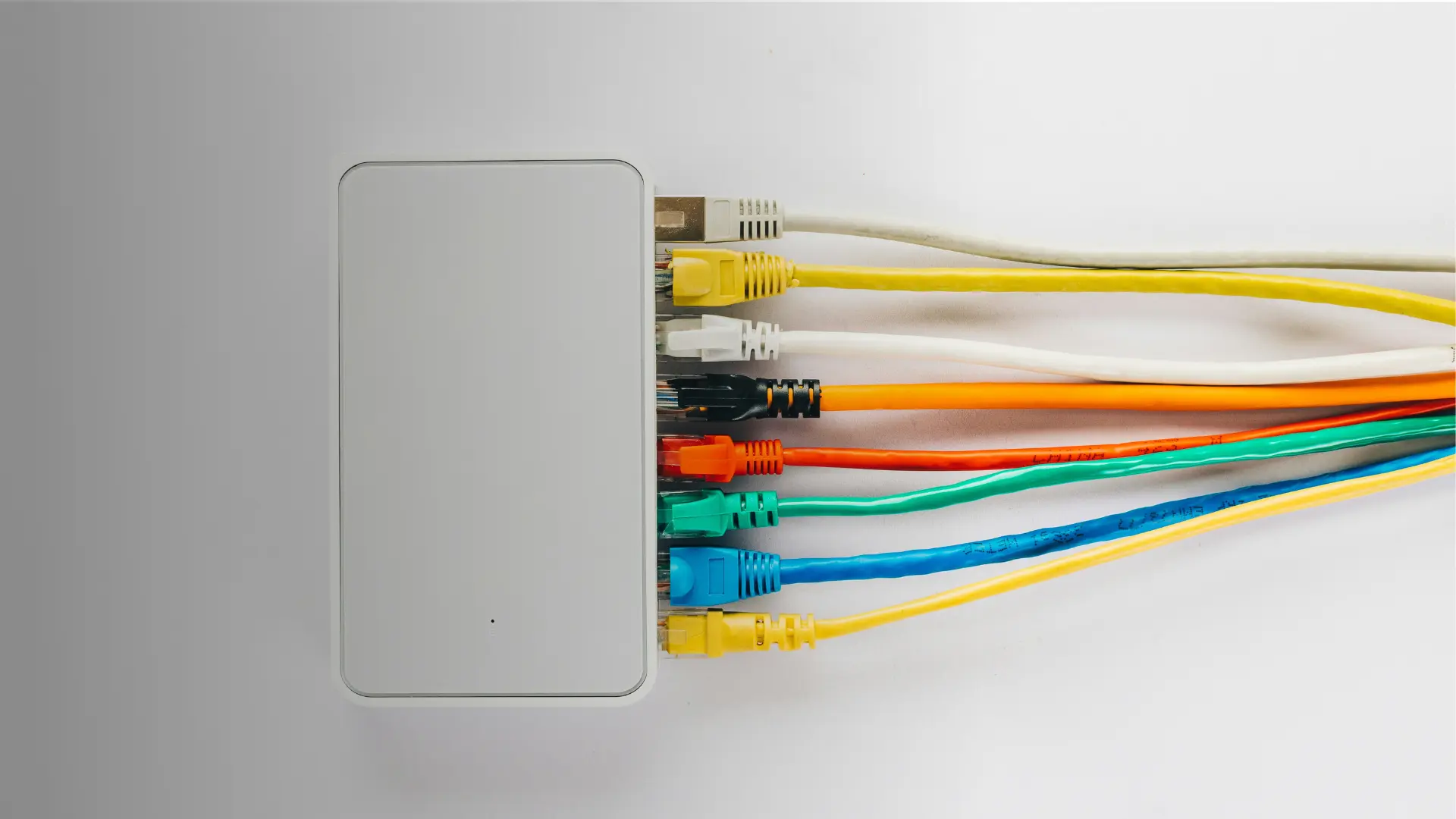 Calisto WiFiGuest WiFi that knows the booking: each login is tied to the stay and expires with it, and an access point that drops shows up before a guest complains.
Built Around You.
Every part of your home connects in CalistoOS. That means fewer handoffs, no missed details, and real time visibility.
 Vos propres séjoursBook your own dates from your owner portal and they close on every channel, like any other reservation.Open Your Owner Portal
 RelevésChaque mois, votre énoncé montre ce que votre logement a gagné, ce qui a été facturé et ce à quoi vous avez droit. Chaque devise a son propre énoncé.Open Your Owner Portal
 Votre ServiceGérez votre maison vous-même, faites-nous gérer les réservations, ou faites-nous gérer tout. Changez quand vous voulez : votre maison, ses réservations et son historique restent tels quels.Voir les Forfaits
Everything in Calisto Rentals
Every app your home runs on, and everything each one does. Your fee is quoted for your home from its address, with every upgrade you choose.
Séjours
- Home: arrivals still to come, departures still here, units not ready for arrivals, open client requests, inquiries to answer, left owing, card holds past release, balance due, walk-ins, housekeeping counts, occupancy tonight and open folios
- Day at a Glance: a card per department, arriving with ETA and unit ready, leaving, units to clean, meals, events and hires, requests and repairs, chef and groceries, money
- Arrivals & Departures, Here Now, Walk-Ins, No-Shows and Departed
- Night Audit: exceptions, units sold, occupancy, room revenue, ADR, charges by department and payments by tender per currency, with the trial balance when the books are in Calisto Ledger
- Message Guests: an announcement to Here Now, arrivals, departures or a date, sent with Calisto Campaigns
- Search by guest name, confirmation code, unit or email
- Check-In Hub, a day to 30 days ahead: details and ETA, the party’s registration, agreement, deposit, unit, door key, online check-in and requests, with Send Check-In Link, Fill In, Assign Room, Take Deposit and Issue Key
- Reservations as a list, a map and a ledger
- The stay page: details, guests and check-in, folio, messages, automated messages, form responses, condition reports and the stay’s record
- Move Rooms, Keep in One Room, split stays, room upgrades, hired places and the payment schedule
- Charge a channel’s virtual card, and the taxes a channel collected
- Calendar: every unit by night over 2 weeks, a month, 3 months or a year; drag to move, click a free night to book; live updates; a Turnover tab
- New Reservation: the desk quote by nights, party and Bookable Unit; day use by the hour
- Import Reservations from another system
- Group Blocks: groups, event room blocks and allotments for companies, agents and channels, with pickup, cutoff and Release now
- Rooming Lists, Group Billing and master bills
- A booking link per group, with a QR code; groups that span locations
- Room blocks from a won proposal arrive at the agreed rate, with Calisto Proposals
- Stay Clients: everyone who stayed, their stays, nights and preferences, with export kept to the people allowed
- Client Status: VIP, and not to be booked again
- Owners, Event Clients and Pass Holders
- Duplicates found by email, phone or name and merged into one record
- One record per person, with every stay, folio and conversation
- Villas, apartments, townhouses and hotel rooms; Bookable Units; communities; hotels; unit plans
- A unit’s page as a task list: Unit Type and name, where, layout, photos (Sort My Photos), amenities, highlights, words (Draft with Calisto, in every language), house rules and check-in, price, registration, owners, property details and housekeeping
- Amenities in one picker opening on the most requested, a shared facility marked Shared with the Community
- Destinations: the Booking Page, Calisto World and each connected channel, each with what it still needs
- Registration numbers per unit or per property, under EU Regulation 2024/1028
- Floors and buildings, parking, room layout, and a home’s inventory room by room
- Rates & Restrictions: one grid by Bookable Unit and night, with a row per channel
- Sell: pick a range of nights to open the quote
- Restrictions, rate overrides, occupancy and pacing
- Bulk changes by weekday and date range, and Bulk Edit on a phone
- Gap nights: a lower price, a shorter minimum stay, or both
- Rate plans defined once and sold at the locations chosen, with channel mark-ups: standard, non-refundable, advance purchase, package, corporate, group, member, long stay, monthly, last minute and day use
- Packages and meal plans, seasons, and room upgrade offers
- Dynamic Pricing inside a floor and a ceiling, reviewed or on autopilot, with Calisto Pulse
- Connections, Distribution, Status, Errors with How to Fix, Logs, Incoming, Performance, Commissions and Price Parity, with Calisto Sync
- A switch per listing for each connected channel, and availability sent within a minute of every booking
- An overbooking allowance per Bookable Unit
- Unit calendars in and out by iCal
- Tourist tax marked as collected and remitted by the channel
- A booking page on each published website, and a Book Now button for any other site, with Calisto Sites
- The lowest price per night on the availability calendar; the client chooses the rate plan
- Booking rules: instant or request to book, deposit taken, held or verified, card on file, balance due, monthly payments, cancellation policies and refunds
- Booking risk rules: 3D Secure, card and phone countries that disagree, high-value last-minute stays and large new parties, sent to Needs Review or turned away
- The Unit Board: Start cleaning, Mark clean, Mark inspected, assign and reassign, report a problem, back in service, and a door code per task
- Tasks and common areas on a schedule, with Calisto Dispatch
- Inspections with an automatic photo check, with Calisto Assure
- Sensor alerts from Calisto Signal
- Amenity stock and amenities used, with Calisto Inventory
- Linen sets per bed, bathroom and guest against par; the used set to the laundry after each turnover; a restock task below par
- Cleaning standards per unit type, checklist versions with reference photos
- Stay rules: when the turnover opens, inspect before Ready, cleaning time, stayover cadence, the checklist gate and the photo check
- An owner’s own cleaner, given that owner’s turnovers
- Requests, a list, a board and a calendar of work orders, and recurring work, with Calisto Dispatch
- Recurring maintenance, pool care and readings, with Calisto Assure
- An owner’s approval for a work order above the limit you set; the repair cost recorded with its markup
- Requests from the desk, a kiosk, the room TV, the portal, a message, an add-on, a minibar refill or a late checkout
- Late checkouts approved or declined; add-ons that open a task for the team
- Cases, with Calisto Desk; guest WiFi, with Calisto WiFi
- Dining: restaurants and bars with the live wait, Book a Table and Add to Line, partner restaurants, room service ordered now or for later, breakfast and meal plans, chef and groceries, minibar
- Amenities: the events calendar, inquiries and proposals, meeting rooms, cabanas and loungers, space hires, day passes and issued passes
- Projects for renovations and fit-outs, with Calisto Velocity
- Client Folios, Owner Folios, Card Holds, Payments Due, Receivables Ledger (with Calisto Ledger) and House Accounts
- A folio’s charges, payments and allowances, Settle and Post charge
- Bill to company, a group payer, and company billing on its own schedule
- Send payment link, the payment schedule, and a card on file across payment providers
- An invoice at check-out
- Portfolio: each owner’s homes, service, agreement, money this month, trust, payouts and repairs waiting
- Owner Stays and Awaiting Owner
- Owner Statements: Generate, Publish to owner, Enter in trust, Record owner payout, Close Period, Publish All Clean, and the period closed each day it ends
- The owner’s page with their annual statement as a PDF, and four owner reports
- A fee as a share of gross, a share of net, or a fixed amount per stay; money the owner collected; shortfall invoices; a statement per co-owner
- Service offers, and owner agreements as dated contracts signed with Calisto Sign
- Owner sign-up: address, offers, home, rental estimate (with Calisto Pulse), Accept and Sign, then Getting Your Home Ready
- A home moved between businesses, managed or run by its owner, with its stays, rates, photos, checklists and owners; every lock moves with it
- Guest Details, party registration guest by guest, companion links, a document scan and signing on a tablet
- Authority filing: SES.HOSPEDAJES, Alloggiati Web and SIBA, a registration policy per country, reminders and the Guest Registration report
- Door keys: generate a code or record a key, revoked when the stay ends, with Calisto Access; works with no lock connected
- Occupancy, ADR and RevPAR; properties; units; departments; profit and loss on the USALI layout; owners; management fee income; owner performance; owners gained and lost; markets; booked ahead; gaps; guest registration; housekeeping labor; channel performance
- Ask a question, describe a custom report, or schedule one
- Rules offered off: door codes on confirm, check-in or unit ready, turnover auto-assign, a task from a sensor alert, a long-stay extension offer, welcome and pre-arrival texts, review requests, win-back, birthdays and returning clients, with Calisto Automations
- Built in: Room Ready, Night Audit not signed, payment-due reminders, charging the card on its due day, the no-show fee
- People, owners, invitations, the schedule with arrivals and departures, and shift requests, with Calisto Workforce
- Screen sets per job, starting from Front desk agent
- Printers, printer routing, card readers, scales, signing units, the lobby screen and room TVs
- On a phone: Today, Calendar, Housekeeping and Threads as tabs; check in, book and hand over a door code; Start Cleaning and Mark Clean held with no signal
- Pushes to accept or decline a request, check in an arrival, and open the Calendar on an overbooking
- Test Locations kept out of billing, and Data Custody
Inventaire
- Items: every item with its SKU, codes, category, stock level, on hand, location and value, searched and filtered, paged past 200.
- On hand is the sum of each location’s ledger, recomputed on every write; quantities are decimals, and only the each unit steps in whole units.
- Variants are the counted unit: each holds its own stock per location, and its parent moves with it.
- A product is Shop’s catalog record and Inventory holds its stock, linked one to one; a stock record carries no sell price.
- One category list for every kind of stock, alphabetical with Other last, in your business’s own words.
- Allergens (Contains and May Contain, gluten named by its cereal) and nutrition per 100 g or 100 ml, from the food table, Open Food Facts or by hand, with its Nutri-Score.
- An item’s page: Details, Usage and Barcodes, with Adjust Stock, Create Purchase Order and its photo.
- Data Quality: a quality score, and which items have a figure of their own that is wrong and why, each with Fix.
- Consumables: cleaning, packaging and supplies used up by use.
- Available to sell is on hand less what is held: a buyer’s checkout, a wholesale order, a customer hold at another branch, a Production Order’s components, a cross-docked share.
- Tracked As: none, by lot or by serial number, the item’s one switch; a lot item is received with its lot, a serial item one serial per unit.
- Replenished: kept in stock, or made for each order.
- Its ABC class is a column and a filter on Items.
- A stock location stands at one of your places (a store, a warehouse, a venue) or inside one (a cooler, a stock room); its address is the place’s.
- A location sits inside another: an aisle in a warehouse, a shelf in an aisle, a bin on a shelf, a dock where deliveries land and a shipping area where goods wait to leave.
- A location’s items, value and par include every location inside it; its page has Inside, Replenishment and Put-Away Rules tabs and Add a Location Inside; a location with locations inside it is never deleted.
- Location types include a van held by one technician, a home, a unit and a laundry, a consignee holding consigned pieces, a work center, a subcontractor held by its supplier, a marketplace warehouse (Amazon FBA, Mercado Libre Full) and a third-party logistics warehouse, the last two made by Sync.
- Replenishment routes, one per location and source: move from another location, buy from a supplier, or make it.
- A short location is met first from another location’s stock above its own par, less what is held there, along its routes in priority order; only the rest is bought. Reorder shows Move First and Create Transfers, and the hourly job announces each move once a day.
- A route set to Put Away Here moves what a dock receives on to its location, through a put-away transfer drafted by the receipt.
- Put-away rules send a delivery landing at a location to the place inside it named for its item, its category or how it is tracked.
- Cross-docking: a delivery’s share for an order a picker marked short goes straight to the shipping area, held for that order; Orderflow’s Pick Lists pick it there.
- Routes and put-away are owner settings, off until you turn them on.
- Names are unique per business, ignoring case; renaming keeps the stock attached.
- Pars per location; a location below its par is a reorder trigger on its own and is announced from every write that takes from it.
- Transfers: sent units leave the source and travel at no location, so nothing offers them; received line by line, cancelled back to the source, or closed with what was lost in transit written off.
- A home that runs short opens a restock task in Dispatch, and a home’s linen goes to the laundry after each turnover (with Stays).
- Each location’s Fulfillment priority ranks where an online order ships from (with Orderflow).
- One register of every printed code: the item and variant, the catalog product, and the pack level a code is printed on.
- UPC-A, EAN-13 and GTIN-14 of one product are one code.
- Codes are added by scanning on an item’s Barcodes tab, on Scan to Link walking the stockroom, from the unknown-code sheet mid-count, or generated in the GS1 in-store range.
- Without a Barcode: the items that still need one.
- Scan: look an item up, count it or receive it with the phone’s camera or a scanner.
- Calisto’s search finds items by name, SKU or any printed code, suppliers and purchase orders, never a figure.
- Start a count of a zone or the whole location; an open count over the same shelf is refused.
- Blind counting: the counter never sees the expected figure, at the screen or the API.
- Each scan is one of what it names at the place being counted, in any order; Scan, Then Type Quantity is a switch.
- Count by Voice: say what you counted in any language, see what was heard against that count’s lines, and confirm.
- Every entry queues on the device with no signal, counts once however often it is sent, and undoes like any other.
- Assign zones to counters; schedules on a cadence with reminders; overdue counts announced.
- Review: each line’s expected, counted, variance and its value, with recount, adjust and investigate; approving sets the stock and posts the difference.
- Approving is your business’s approval, routed in Settings, made on the review or in Approvals.
- History, Trends, and the items that miscount again and again; the count program’s ROI.
- The count sheet can keep the screen on and open dark; a count exports to CSV and prints, without values for anyone who does not see costs.
- Batches: each lot with its number, expiry, location and what is left, and each serial unit with its state.
- A sale draws lots first-expiring-first at the location that sold it, and records which lot it took.
- Expiring and expired lots are announced once per business day, or held for the day’s digest.
- A lot’s page lists every sale and order that took it, with Notify These Buyers, each told once.
- Write off a lot with its reason, at what that stock cost.
- A serial number is a lot of one unit; one serial number is never two live units of an item, whatever its case or spacing.
- A unit is in stock, held, sold, returned, scrapped, quarantined or recalled, and carries its warranty date.
- Serial numbers are received scanned, pasted or as a range, one unit each, put away by name.
- A count of a serial item is the scan list of its serial numbers: the missing and unexpected ones are its variance, reconciled on approval.
- Transfers, waste and adjustments name the unit they move.
- The till rings the serial scanned; Orderflow’s Pick Lists and Ship from Store name an order line’s units and hold them; with none named, the oldest unit is drawn and marked not confirmed.
- A void or a return gives the unit back as returned.
- Each unit sold and each one drawn unconfirmed is announced once, as an Automations rule.
- When you turn the rule on, a unit sold becomes its buyer’s equipment, so a service visit in Trades or Dispatch finds it.
- A serial’s page: its state, warranty, who bought it, whether its number was confirmed, and its history.
- A serial number finds its unit in Inventory’s, Desk’s and Trades’ search.
- Recall Serials tells every buyer of the units named, by number, list or range, once.
- One composition model: recipes, sub-recipes, cocktails, retail kits and manufacturing bills of materials, each told apart by its kind.
- Sold As: any catalog item, a dish, a product, a bundle or a service; a bundle is a kit sold as the bundle product.
- Cost walks down through sub-recipes to today’s unit costs, with each line’s yield and the recipe’s yield, converted to each ingredient’s unit; a line that cannot convert makes the cost unknown, and says why.
- Status: draft, testing, active, seasonal, discontinued; a recipe in use is never deleted.
- Draft a recipe from the kitchen’s request, or Read a Recipe from photos, a PDF, a Word document or a text file, matched only to what you stock, reviewed before it is saved.
- Import from a spreadsheet, each row made and answered for itself.
- Food labels printed from the recipe: ingredients by weight with allergens in bold, the named ingredient’s percentage, net quantity, use by or best before with storage, name and address, nutrition per 100 g and the lot, as a sheet of stickers or on a label printer.
- A label that cannot state everything is refused with every reason, never printed partly.
- Menu costing, prep lists and actual against theoretical are Dine’s screens over the same recipes.
- A bill of materials names the stock item it makes and its steps: a work center, setup minutes and minutes per batch.
- A composition made into stock is drawn from that stock when sold; a bill of materials with no stock item is taken apart at the sale, as a kit is.
- Production Orders: number, what it makes, how many, how far along, steps done, where it lands, when it is due and its status, searched and filtered, late ones flagged.
- One way to make an order, from the screen, Reorder, Orderflow’s make-to-order rule, Automations or a kitchen’s prep run: the bill of materials exploded through sub-recipes in each component’s stock unit, with any shortage shown.
- Draft, planned, released, in progress, done or cancelled; leaving draft makes one Dispatch task per step, and releasing holds the components.
- Each run consumes its components (scanned lots and serials first, else first to expire) and posts what was made as a lot, or one serial per unit, with its expiry.
- A run costs its materials plus each step’s minutes at the work center’s labor and overhead rates; scrap carries no stock and its cost stays in the good units.
- Partly made, run by run, or taken apart: disassembly returns each part at its share of the bill of materials’ value.
- A run whose costs span two currencies posts on the materials’ currency and never converts.
- Work centers: labor and overhead rates, working minutes per weekday, crew from Workforce shifts and machines from the asset register.
- Subcontracting: the components go to the subcontractor by transfer, a service purchase order is raised for the fee, and receiving the finished goods consumes the components there and costs them in.
- Make to order: an item made for each order gets a released Production Order per line, due when the order is, and finishing it moves the line on in Orderflow; a cancelled order cancels what had not started.
- Make to stock: a short location whose route makes the item gets a draft Production Order from the hourly reorder job; Reorder shows Make and Create Production Orders.
- The schedule: each work center by day against its hours, machines and crew, with over-capacity and late steps flagged and steps dragged onto a day.
- The Shop Floor, on a desk, a station, a phone and Orderflow’s Production floor: each work center’s queue; start, pause and finish a step, scan components, record what was made and scrapped, and print its label.
- Made ahead: a sauce or stock marked prepped on Dine’s prep list is stocked, and every dish that uses it draws it.
- Late orders and finished ones are announced as Automations rules, and Create Production Order is an Automations action.
- Materials, labor, overhead and fees show only to people who see costs.
- Every sale line takes its stock off exactly once: the register, a kiosk, a table or golf order, a portal order, an online order and a delivery app.
- A recipe’s ingredients by the recipe, a product’s linked stock one for one, a bundle’s members by their quantities.
- Realtime or every 15 minutes, your choice; a voided line puts its stock back at the cost it left at.
- Imported sales history is never taken off stock.
- A dish sells out when its ingredients run out, and is back on sale when restocked.
- Record Usage, a work order’s parts and Dispatch’s job parts go through the one usage writer, with their cost at use.
- Depletions and the Movement Report: every movement in and out, by item and location.
- Adjustments: every change with its reason, who made it and where; a change that would take more than is there is refused.
- Suppliers with their contact, email, phone, payment terms, lead time, address and notes, and their active orders.
- Purchase orders: draft, sent for approval when you ask, approved, sent, confirmed, partly received, received.
- Send to Supplier: the printable order emailed once from your connected mailbox; Print, Resend, Back to Draft and Cancel.
- Lines are edited only on a draft with nothing received.
- Reorder: each item’s reorder point, reorder quantity and maximum, plus each location’s par, less what is already on order.
- Orders that draft themselves hourly for items set to reorder automatically, ordering only what moves between locations leave.
- Order from an item, an alert or a push: a filled-in purchase order.
- Bills: each order’s supplier bills and where they stand against the order and its deliveries; the three-way match is Ledger’s.
- A purchase order in another currency stays on its own currency.
- A supplier set to drop-ship sends its orders straight to your customers, by email from your mailbox or through your own connection with it.
- Drop-ship purchase orders: one per customer order and supplier, raised by Orderflow when the order is accepted, with the customer’s address and order; filtered by Drop-Ship, with a Customer Order column.
- A drop-ship order is never received into stock: Mark as Shipped with the tracking, or the supplier’s own tracking, moves the customer’s shipment and closes it as Shipped to Customer; Ledger matches its bill on what was shipped.
- A drop-ship product is never counted, held or sold out in stock.
- A subcontractor’s service purchase order carries its Production Order.
- Forecast: each item’s next 7 and 28 days, an average day, days of cover, the day it runs out and how close the forecast came, item-wide and per location, by class. Units only.
- Forecast nightly from each item’s daily sales and use, fitted with weekday and yearly patterns and a damped trend, the same-weekday average or the recent average, whichever tested most accurate on the item’s own last weeks, by plain statistics.
- An item set to reorder from sales has its reorder point set to the forecast over its supplier’s lead time plus safety stock at its service level (95% unless set), and its quantity to the forecast over its cover days.
- ABC Classes: every item ranked by revenue, units, margin or usage value over its window, within each currency or unit, never converted; the class is stored nightly.
- Settings: the measure, the A and B thresholds and the window, and count reminders by class.
- Revenue reads only for people who see sales reports, and margin and usage value for people who see costs.
- Dine’s prep lists forecast with the same engine.
- Third-party logistics warehouses (byrd, Bigblue, Monta), connected in Sync with your own account: each one a stock location orders are routed and sent to, offered on every channel.
- Purchase orders and transfers to it are announced as deliveries; its stock is recounted every 30 minutes from its own count; its shipments, returns and cancellations come back on the order.
- EDI with retailers, with Sync: each retailer set up once with its EANCOM or X12 profile and its own SFTP or VAN mailbox, or over AS2, collected every 15 minutes into a log of every document in and out.
- AS2 for retailers that require it, with Sync: your own AS2 ID and certificate, made once and sent to each retailer; documents go out signed and encrypted and count as sent only on the retailer’s receipt.
- A retailer’s EDI order becomes a draft proposal, and the order response, the dispatch advice with an SSCC per package and the invoice go back once each, with Send Again.
- Purchase orders read, with Proposals: a buyer’s PDF or photo order, uploaded or emailed to your purchase-order mailbox, becomes a draft proposal for that buyer, its lines matched to your products and variants at that buyer’s prices, checked beside the document and confirmed into Orderflow.
- The Dock: deliveries due, soonest first, and what has arrived.
- One receive form: quantity received and refused with its reason, lot or serial numbers, expiry, invoice price, invoiced quantity, invoice number, freight and duty as one figure spread over the units by value, packing slip, carrier and notes.
- The receive form says where each line goes before it is posted, and offers Send to Orders for an order waiting on what arrived.
- Brazil: a supplier’s NF-e XML, uploaded, emailed to any of your mailboxes or pulled from your own fiscal provider, is checked, kept once and matched into a draft receipt by the supplier’s tax ID, its item codes, the GTIN or the order line.
- Receiving an NF-e posts its lots and expiry, its freight, insurance and other charges as landed cost, opens the supplier’s bill in Ledger and tells SEFAZ through your provider; Refuse posts nothing.
- Receive line by line, or Receive All Remaining.
- Receiving Report, and Supplier Reconciliation: a delivery compared with the next count.
- The invoice price and freight show only to people who see costs.
- Cost methods: weighted average, FIFO, LIFO, standard and specific identification, per category, else the business’s default.
- Every unit in writes a cost layer and every unit out draws one, in the method’s order; transfers move layers with their cost.
- Standard cost on the item form, with purchase price variance on a receipt at another price.
- No cost is ever guessed: stock with no known cost is counted as uncosted, never valued.
- Item Costs and Markup Rules.
- Valuation by category and location, each naming its method, with its CSV, captured snapshots, nightly snapshots and comparisons.
- Waste Log: what was lost, why, by whom and what it cost, with the reasons worded for every kind of stock and an alert threshold.
- Money stays per currency: stock value, order totals and receipts are grouped by currency, never converted.
- The asset register: Company Assets, Rental Fleet and Managed Property, on a Board, For Hire, Availability and Utilization.
- A unit’s state is worked out: disposed, down with its reason, on hire, else available; availability subtracts downtime.
- A unit’s page: Details, Hires, Work Orders, Recurring Maintenance, Downtime, Meters, Performance, Documents and Incidents.
- Work orders costed by their lines: labor, parts from a depot and other; completing one uses its parts, records its meter and closes its downtime.
- Recurring maintenance is Assure’s plans, due by date or meter, whichever comes first, each cycle a work order.
- Meters only go up, unless corrected.
- Hand-offs out and back: meter, fuel and condition; damage at a return opens a repair, recoverable from the renter.
- A unit’s papers (registration, insurance, inspection) with their files, and its tank size for refuel lines.
- Unit labels with a QR code and a barcode; RFID tags and the case a unit lives in.
- Dispose is the only way to retire a unit; a disposed unit stays readable.
- Bookable equipment: an asset offered in a booking, priced and held by the booking.
- Book value, depreciation and disposal accounting are Ledger’s.
- Every notice is an Automations rule: reorder point reached, ran out, expiring lots, a count submitted, assigned or overdue, an item miscounting again, a usage spike, an order drafted, a location below its par, a move suggested, a serial sold or not confirmed, a Production Order finished or late, a drop-ship order sent, shipped or failed, and service due.
- How a notice arrives (in the app, by email, how often) and who hears about counts are each rule’s settings.
- Insights: Stock Levels, Low Stock, Aging, ROI, Forecast and ABC Classes.
- The Item Report: every item with its valuation, sliced as you read it; custom reports are built in Purview’s report builder.
- One settings page: General, Costing, Stock and Counting (with Locations and Routes and ABC Classes), Assets and Maintenance, Notifications, This Device and Connected Apps.
- Drop-Ship Connections, the same panel as Orderflow’s.
- Who sees costs, stock value, hire revenue and the books are your business’s settings; a figure that is not theirs reads Not shared with you, never zero.
- Every create happens once, however often the button is pressed.
- Tabs for Scan, Items, Counts and Orders, and More for the whole menu; on a phone the start page is the stock list.
- Overview: what is low, the active count and deliveries due, with Start a Count, New Purchase Order and Log Waste.
- Every record is one page on a phone and at a desk: an item, a purchase order, a count review, a supplier, a location, a work order, a recipe with its cook view, a batch, a transfer and a unit.
- Shortcuts: Scan, Start Count, Stock Alerts, Receiving, Purchase Orders and Items.
- Each item’s card carries its forecast line; the Production row opens the Shop Floor.
- Notifications with buttons: Order and Dismiss on low stock, Review on a submitted count, Start Counting on an assignment, Review Order on a drafted order.
- Photos shared to Inventory become an item’s photo or start a new item.
- Scan, Items, Stock Alerts, Counts, Receiving and Add a Photo open with no signal on a device you choose; never a money page.
- Waste, a use of stock, an adjustment and a delivery recorded with no signal are sent once; one refused on the way is said, never dropped.
- Stock Alerts and Deliveries Due widgets on the Windows Widgets Board, never a money figure.
Champ d'action
- Documents, sheets, slides, designs, proposals, client portals, signable documents, seat maps, floor plans and WiFi sign-in pages are private to whoever made them
- A default classification on every new document, sheet and slide, from Public to Restricted; its author can raise it
- New documents, sheets and slides kept for the days you set, then moved to Trash, where they can be restored
- Shared with a person, with a Hub (everyone in it, as its members change) or with everyone in the business
- Each share can view, comment or edit, and is changed or removed in place
- Nobody else opens a person’s work, however senior
- When someone is no longer in the business, the people the owner names open and edit everything they made there
- Who takes it over: owners and admins, or owners only; owners always do
- Covered however someone leaves: removed, offboarded, a business split or merged, or ended from a company directory
- Work From People Who Left: their documents, designs, proposals, portals, signable documents, seat maps and sign-in pages, each with who made and last edited it, opening in its own app
- Bookings, invoices, contacts, tasks, work orders and shifts are the business’s from the moment they are saved
- Removing someone in Workforce sends their open listings, leads, deals, tasks and work orders to the person chosen
- What a client, a guest or a signer is sent still reaches them after its maker leaves
- One Calisto account for life, in as many businesses as a person works in
- Owner, admin, team member, station person, coached client and client, each begun by an accepted invitation
- An invitation from Add Member says what the business will reach, and that it controls nothing else of the person’s account
- Accept, decline, leave, suspend and remove
- A business never sees a person’s own account, their other businesses or their personal apps
- No roles and no permission matrix: anything narrower is a station’s design or an owner setting
- People & privacy: one group of owner settings, each with a default, changed by owners or the admins they delegate it to
- Who supervises calls, who coaches, who authors and assigns training, who invites people
- Who sees colleagues, pay rates, recordings, guest documents and cameras
- Who acts on an approval waiting on someone else, and who reopens a written-off folio
- Who arranges the register, applies a seal, locks parts of a design and manages walls between matters
- Who manages Hubs and who removes people from them
- How work moves to a colleague: at once, offered and accepted, or by owners only, and who may move it
- Who sees customers’ personal data, per person, and which stations show it
- Whether names appear on public screens, and whether a visit records where the rep’s phone was
- An exception for one person on personal data, money and handing over work, set when they are added or later
- Require two-step sign-in for everyone in the business: a passkey or an authenticator app, with no way to skip setting one up
- Anything withheld says why: Restricted, or Not shared with you
- Seventeen families, each its own setting: look up payments, take payments, see one’s own sales, see deal values, change prices, mark down at the till, refund and void, answer disputes, issue gift cards, see sales reports, see costs, see payouts, reconcile payouts, see financial statements, set up payments, manage the books, payroll
- Looking up and taking payments, one’s own sales and deal values are open by default; prices and markdowns are admins’; the rest are the owner’s
- A per-person exception, and a station’s grant for what the station shows at its location
- Where money is paid out to: the owner alone, confirmed each time, and told
- What the business pays Calisto: owners by default, widened to admins if the owner chooses
- Per setting: Members may change, or Purview manages
- A managed setting is read-only in every app, with where it is managed named on it
- A managed setting is edited in Purview directly, without being released first
- A write to a managed setting is refused by the server, from any app, the API or an automation
- The Settings hub: every app’s settings by suite, with how many are managed at each level
- Config Rules: the shared settings every app reads, from name and legal name to hours, brand, languages and tracking IDs
- A capability’s settings are governed once, in every app that shows them
- The reporting currency, the fiscal year end and every tax rate change only by the owner, after an emailed code
- A business’s default form, document or message template is set through Settings ▸ Approvals
- Data Rules on a named person: the apps they read and the fields hidden from them
- A report of how much of the Library is locked, and where each item came from
- Accept an HQ’s group invitation and choose which of your businesses joins
- Leave a group, keeping the shared details’ current values
- What HQ manages in Blueprint is read-only here and in every app
- What HQ lets a business change starts at HQ’s value and is the business’s own
- HQ can make the Collection a standard, and each business wears it
- What HQ sent down and what was bought in the Pro Shop, each with its source
- My Purviews: every business you run, with its health
- Needs Attention: unfinished setup, drifted standards, unanswered invitations, paused businesses and billing that needs you, most severe first
- The header switcher re-renders the page for the business picked
- A link that names a business switches to it first
- Compare two businesses field by field; copy one difference or all of them
- Names, addresses, coordinates, contact details and domains are never offered for copying
- New Purview: set up another business, made once however many times it is sent
- Copy a business, with its setup and, if chosen, its team
- Split one off with its setup; the confirmation lists every record that stays behind
- Share a business with someone as a member or an admin, with an acceptance code shown once
- Merge chosen settings into another business, move its team if chosen, and archive the source
- Enforce Standards: push one business’s settings onto others and lock them there
- Enforce asks the owner for a code before pushing a protected setting, and says what waits for another business’s owner
- Transfer Work Product: move a screen or template made in the wrong business, its body untouched
- A business is never one industry: it sells many kinds of things, each record its own kind
- Identity: display name, legal name, domain, description, tax ID, contact email and phone
- An address looked up as you type and pinned on Calisto’s own map
- Heures d'ouverture : l'hororaire hebdomadaire d'ouverture
- Social profiles, and Google Analytics, Meta Pixel and TikTok Pixel IDs
- Modèle d'affaires et échelle
- Brand: logo, colors and type, shared with every app
- People: for each person the business publishes, whether their page wears its brand or their own
- Localization: country, currency, timezone, date and time formats, units, paper size, team and customer languages
- Sales tax, VAT, tourist tax and the currencies the business accepts
- How You Operate: what a bookable unit is called, the workflow, how it bills, its channels
- Rename a shared word, and the screens built on Calisto’s shared words read yours
- The same blocks each Core app’s Settings shows, over that app’s own routes
- Every location of the business, with its address and hours
- The zones inside each location
- A branch is a location of one business, never a business of its own
- Core, Commerce, Ops, Nexus, Interact, Work, Create and Engage, each with its grid of apps
- Each app’s own settings blocks, rendered here with Members may change or Purview manages
- Apps with more also show their screens, published pages, templates and forms
- Pulse’s settings render here as they do in Pulse
- Every website, app, portal, kiosk, station and TV screen the business publishes, by everyone on the account
- Set a published page’s domain and who may edit it, take it live or retire it
- No row links out to another app’s settings
- Conversations, Lines, Business Hours, Replies, Shared Mailboxes and Who Answers
- The same records Desk, Inbox and every Core app’s Settings ▸ Messages show
- Items: every record of every kind, whichever app made it, each read through its own store
- Quick add, and prices changed in place
- Completeness for every item; incomplete items stay usable
- An item’s page: fixed price, sold by weight, prep stations, fiscal codes, Calisto Pay, photos, channels and channel issues
- A record another Core app sets up opens in that app
- One fixed price paid on every channel; Pulse’s rate replaces it only where dynamic pricing covers the item
- The Media Library, and import and export over the whole catalog
- Menu changes staged here, then previewed and published in Dine, now or on a date
- The catalog’s reports
- Catalog settings: product defaults, category taxonomies, photo standards, publishing rules and content languages
- Weighed items: how the registers weigh what is sold by weight
- Search by meaning, run on Calisto’s own servers
- Each Core app serves the same catalog on its own address
- Members: everyone in the business
- Add Member, and the invitations still open
- Owners: one or more, answering for billing and the owner settings
- Move This to Your Own Business: whoever made a business someone else owns asks to own it, and only the owner’s approval moves it
- Team Defaults: working hours, week start, calendar and task views, and the sending name and address
- Offboard a Member: ends their access, signs them out everywhere, and ends their share links and open invitations
- Hubs: rename, privacy, archive, restore and delete, on the owner’s rules for who may
- Collections: wear one of Calisto’s, or none; every app takes it on
- The Library: every screen, screen set, block, site and operational template the business made, bought or was sent
- Send an item up to HQ, sell it in the Pro Shop, or buy there
- An item from HQ arrives managed or yours to change
- A paid Calisto Design is used only by an account that bought it
- Make a blank screen, block or site
- Designers for receipts and kitchen tickets, designs, kiosk screens, campaigns, documents and proposals
- Forms & Templates: approve one default per category, and lock it
- Messaging: approve one default per kind and channel, and lock it
- The report builder, with the same saved views as Calisto Reports
- Billing: what the account is subscribed to, read only, changed in Calisto Pro
- Home, Team, Catalog and Settings in the tab bar, for the business you are working in
- Home: Switch Business, what needs you, its doors and its setup, then your other businesses
- Every screen in a phone’s shape: cards for tables, controls at thumb size
- Shortcuts: Needs Attention, Add Member, Catalog Items, Find a Setting, Enforce Standards and New Purview
- Kept on the device with no signal: Home, Needs Attention and the team, read-only
- A catalog item made with no signal is created once
- A drifted standard’s notification opens the business with Enforce ready
- Photos and videos shared to Calisto land in the Media Library
- A Needs Attention widget
- Calisto’s search finds your businesses, a setting by its name and catalog items, never a figure
- Installed as Calisto, with every other app you use
Blueprint
- Create a group: this business becomes its HQ
- A business with no group sees + New Group; one in a group sees which HQ governs it
- Every business in the group says how it is owned: yours, owned separately or franchised
- Add the businesses you already own in one step, after confirming it is you; no invitation
- A business joins as it runs today: its customers, team, bookings, books and apps stay its own
- Invite a business someone else owns by its owner’s email, with a one-time acceptance code shown once
- The owner accepts in Purview and chooses which of their businesses joins, or makes one as they accept
- Nothing about a business is governed until its owner accepts
- A franchised location joins the group when its franchise agreement is signed
- Invitations waiting for an answer, each with when it expires; withdraw one
- Rename the group
- Remove a business: the items HQ sent it are released to it and its values become its own
- Make HQ: hand the group to another business, which alone can hand it back
- Dissolve the group: every business becomes standalone, keeping the values it has
- A business leaves its group from Purview
- Share one catalog across the group
- Declare the group one company in the books: with Ledger, trade between its businesses is taken out of the group’s statements, and they close as one period
- A group keeps one backend; a business on another joins once Sovereign has moved its data
- Franchisees: every agreement, its territory, status, unit cap, exclusivity and when it was signed
- Franchise a Location: a draft agreement with a business in the group under one of your offers, or invite a new franchisee
- Offers: fees (franchise fee, royalty, marketing fund, technology fee, rent) as a share of gross sales, net sales or profit, a flat amount or per unit, once at signing, weekly, monthly or quarterly
- Every amount in the currency you write it in, on the agreement, the contract, the invoice and the franchisee’s side
- A share of sales owed in the currency of those sales, or paid in a currency you name at the rate date you choose, from your own exchange-rate source
- At least and at most on a fee, each in its own currency, converted by your rate choices and shown on the royalty line
- A franchisee that does not share its books reports its sales or units each period, and the fee works out from its report
- An offer’s unit cap, exclusivity and term, and the training paths and checklists signing starts
- Territories drawn on the map as a circle or a shape, each with a Territory Fee per currency, paid at signing or as a financed price over a term
- Send an agreement for signature in Sign, with your Franchise Agreement made from Sign’s starter words; the franchisee signs, then you countersign
- On signing: the location joins your group, its owner is enrolled in your University training, your Assure checklists reach its business, and what is due at signing is invoiced
- Royalties: what each franchisee owes per closed period, accrued by Ledger from the agreement’s fees, in each record’s own currency, invoiced from here
- A royalty metered from the franchisee’s own books when it shares them, or reported, with the reason
- Training: where each franchisee’s owner is in your University paths
- Checklist Results: each franchisee’s checks of your checklists and what failed, for those that share them
- The franchisee sees its agreement, its royalties and what it shares in Purview, and only its owner changes what it shares
- Every franchise read follows the owner’s money settings
- Per setting: Not a standard, Entities may change, or HQ manages
- Entities may change: HQ’s value applies until a business sets its own
- HQ manages: read-only in every business and every app, changed only in Blueprint
- Business: identity, contact, address, hours, social links, locale, brand, tracking IDs and work settings, on the editors each business uses
- The group’s Collection: one design for every business’s sites, apps, portals, kiosks, stations, displays and documents
- Apps: any app’s own settings, on that app’s own settings screen
- Tax: HQ’s sales tax, VAT and tourist tax, copied to every business and kept in step
- A standard binds every business the moment it is set, including one that joins later
- A standard is the group’s, never HQ’s own setting; HQ’s business is set in Purview
- Billing and People & Privacy bind a business only when HQ pays for it
- The reporting currency and the fiscal year end are never a standard
- Each business with the standards it replaced with its own value, the most first
- A setting HQ manages cannot drift, so it never appears
- Open a standard where it is set
- HQ Manages It: take HQ’s value back, after saying whose value it replaces
- HQ’s library: its own work, what businesses sent up and what it bought
- Filter by where an item came from: made here, sent up, bought or shared
- Screens, blocks, sites, checklists, message templates, work order templates, shift patterns and products
- Receipt, automation, document, design, site, campaign, proposal and messaging templates, and sales playbooks
- Send an item to every business or chosen ones, as HQ manages or Businesses may customize
- HQ’s later edits reach every copy
- Recall an item from businesses
- Make an item the default for its kind, hide it, activate it or share it
- Edit an item in the app it was made in
- Items are made in their own apps: a checklist in Assure, a message template in Desk or Campaigns, a work order template in Dispatch, a shift pattern in Workforce
- Sell a library item in the Pro Shop
- Listings, live or unpublished; sales and reviews
- Earnings and payouts per currency, never one converted total
- Sales show to people the owner lets see sales reports; earnings to those who see payouts and balances
- Browse the Pro Shop and buy for the group; a purchase lands in HQ’s library
- HQ decides which businesses get what it bought
- A product and its price are the group’s, never a Pro Shop listing
- A product priced by HQ in each currency its businesses run in
- Customize for the Whole Group on any Calisto screen, edited in its own app
- Every business sees HQ’s version over Calisto’s and under its own changes
- Per screen: businesses may customize on top, or HQ manages it
- Each block follows Calisto’s updates unless HQ fixes it
- Customize lists every screen HQ changed, with its policy
- Reset for the Group: every business goes back to Calisto’s version
- Inside Calisto, the one installed app; the tabs are Home, Group, Compliance and Library
- Every screen in a phone’s shape
- Home: the businesses, the standards, the values businesses set themselves and the invitations waiting
- Shortcuts: Compliance, Standards, Invite a Business, Library and Customize
- Group at a Glance widget
- Home, Group, Compliance and Library kept read-only for no signal on a device you choose
- What the shop sold and what HQ bought are never kept on a device
- Every write says it needs a connection
- Review from the notification: a business that joined, or an item sent up
- Notices when a business joins or leaves, sends an item up, or makes this business HQ
- Each business hears in Purview when HQ sends it an item, removes it, hands HQ over or dissolves the group
- Search: the group’s businesses, its standards and its library items
- Every screen’s tab, app, business and item in its address
- Settings: your Blueprint notices and this device
- Make HQ, Remove from Group, Dissolve and Reset for the Group ask first
- HQ’s members read; HQ’s admins change
- There is no Blueprint role
- Standards, Compliance, Library and Customize are HQ’s
Synchronisation
- One record per catalog item: where it shows and the channels it is sent to
- Where you sell directly: website, mobile app, client portal, counter, kiosks, signage, Wi-Fi splash and social posts
- Calisto Local and World, the regional and global marketplaces
- Each item turned on or off for each place or channel in one tap, one flag at a time
- A channel that would send nothing cannot be turned on, and says why
- Each place shows only what is on for it, and keeps working with Sync down
- Items by category, by place and by channel, with what each sold
- The same dials on the item in Purview and in every Core app’s Channels row
- Each Core app has a Channels row with the channels it sells through
- Une connexion par canal, établie dans n'importe quelle application ou ici, visible dans toutes les applications qu'elle sert
- Status, Incoming, Connections, Distribution, Performance, Parity, Commissions, Errors, Logs and Listings in that row
- The row opens on Status once anything is connected, and on Connections before
- Every link and fix opens the row’s own lens, never Sync’s menu
- A connection’s own setup panel opens in place from any app
- An OAuth connection started in an app returns to that app
- Tous les canaux de l'entreprise réunis dans Sync
- A catalog of every channel Calisto connects, filtered by category
- Connect, sign in with the channel, enter an API key or a seller’s own app, and disconnect
- Request Setup for a channel with no connector: a ticket, and the connector built with you
- The price of a paid connection shown on its card before you connect, or Included with Commerce
- Credentials encrypted per account, never shown again
- Each connection’s field mappings, and the currency and market it sells in
- A connection’s own page with its state, logs and Reconnect
- Room Mapping: each room or villa, its room type and the channel listing that sells it
- One NextPax connection to Airbnb, Booking.com, Expedia, Vrbo, Holidu, GDS and 150+ channels
- Properties and channels mapped, and an existing listing taken over
- Rates, availability and length-of-stay prices sent within a minute of a change
- Each rate plan sent under its own id, with its own cancellation terms
- Overbooking allowance per room type, and an oversold type told to the front desk
- EU registration numbers on each listing, and a listing held while one is missing
- Listing content and amenities under each channel’s codes, with a business’s own codes
- Promotions created, switched and removed on the channels
- Inbound bookings, guest messages and reviews handed to Stays, Threads and Reputation
- Whose bank each listing pays, and a listing that never moves between businesses
- CalistoStays.com as a channel, switched on by the owner
- The nightly grid of rates, availability, night rules and each plan’s channel mark-up
- Calendar feeds out and in for each unit, rental and talent
- Reserve with Google for salons, spas, studios and golf: Book opens your own website
- A Google booking reported back once it stands
- Shopify, WooCommerce, Etsy, Mercado Libre, Allegro, Amazon and TikTok Shop
- Listings pushed from the catalog and recorded in the listing ledger: id, address, live, error or removed
- Stock sent with a held-back amount and a cap, changed quantities only, within a minute of the change
- At zero stock, send zero or unpublish, and republish when stock returns
- Marketplace orders arrive as sales, mapped to the catalog by SKU
- TikTok Shop on the seller’s own app, with shipping, returns and the seller’s cancellation reason
- Google Shopping, Meta, Pinterest and Microsoft Shopping product feeds
- Rentals and shows supplied to Calisto Local and World
- Uber Eats, DoorDash and the other delivery platforms on one order board
- Accept with a prep time, reject, move an order on, pause the kitchen or mark it busy
- Status sent back to the platform: accepted, ready, shipped with tracking, cancelled
- Automatic acceptance per store, off unless chosen
- The menu published with Calisto’s own item ids, so every order line maps to what it sold
- Sold out, prep time and per-platform on and off, the same block as Dine ▸ Sold Out
- A scheduled menu change published at its time and sent to every platform
- GetYourGuide, Viator, Klook and PrioTicket, with Calisto as the reservation system
- A seat sold on any tour channel gone everywhere
- MICHELIN Guide, Tripadvisor, Google, Instagram, Facebook and Quandoo through Mozrest, and TheFork
- A table sold on any channel gone everywhere, and the deposit asked on channels too
- Tracked booking links for TikTok, Instagram and Facebook
- Wellhub and ClassPass classes and seats
- Google Local Services and the inquiry directories, their leads into Deals
- MLS boards through Bridge Interactive, with a board’s status changes on the listing
- Every connection, its state and what it last sent
- Errors: every refused push, rejected listing, missing field and stuck order
- Numbered steps to fix each kind of issue, and one-tap Retry
- Logs with both payloads, narrowed to one connection, exported as CSV
- A failure no one was watching put on Health and on the team’s phones
- Revenue and commission by channel, per currency, never converted
- One location’s rooms, or stays and delivery apart
- Rate parity across channels, and availability re-sent where a channel still sells what is gone
- Commission rules per channel and property: absorb, mark up for the guest, or split
- Effective dates, and a property’s own deal with a channel
- A tour channel’s commission counted on every tour it sends
- The commission feed Ledger reports from, per currency
- Bundles sold as one line, from the catalog in Purview
- Collections a storefront rail or a channel shows, ordered and scheduled
- A collection copied into another of your businesses with its prices
- Feed schedule and content, availability and rates, commissions and parity
- Pulse’s pricing rules created and edited from Sync
- Notices for a channel connected, lost or failing, and a booking arriving or cancelled
- Each notice an Automations rule each person can mute
- Channel performance follows your sales-report setting
- A channel order’s amount shown only to whoever may look a payment up
- Commission rules, mark-ups and what a connection sells in follow your Change Prices setting
- Tabs: Home, Health, Connections and Distribution
- Shortcuts to Channel Health, Errors, Incoming Orders, New Connection, Distribution and Listings
- Home and Channel Health with no signal, once kept on that device
- Retry and Reconnect from a notification
- Channel Health on the Windows Widgets Board
- Calisto search finds your connections and the channels you could connect
- Purview (the catalog, and the item page’s channel dials)
- Pulse (nightly rates, night rules and pricing rules)
- Stays, Experiences, Dine, Shop, Rentals and every Core app (their Channels rows)
- Orderflow (channel orders and their status back)
- Inventory (stock sent to marketplaces)
- Threads and Reputation (guest messages and reviews from channels)
- Ledger (channel commissions)
- Deals (leads from Google Local Services)
- Automations (the team’s notices)
Pulse
- Nights: a rate for every night of each unit type, of a stay’s rate plans, or of the whole place as one
- Tickets: the price of each paid ticket type, which every ticket checkout charges, with Tickets
- Time slots: each appointment, class, tee time or departure, on the business’s hours or the resource’s own day
- A base rate between a floor and a ceiling; no price ever leaves the band
- A new rule’s base rate seeded once from what the offering already charges, in that price’s currency
- What each rule prices: unit types, rate plans, ticket types or slot offerings
- Switches per rule: demand, market, season, day of week and weather
- A step-by-step wizard, and a rule page with its calendar, forecast accuracy and run log
- Reprices every hour, stalest rule first, or on Recalculate Now and Price This Month
- Pause, resume and delete a rule; two people editing one rule never overwrite each other
- Forecast per segment: what is on the books now plus the pickup expected before the date
- Pickup learned from daily pace snapshots, choosing the form that backtests most accurately
- Seasonality from your own year, blended with the market’s while your history is short
- Your weekday pattern from the last eight weeks
- Similar units and the market lend history to a new or single unit; with nothing to learn from, the base rate applies and says why
- Holidays, school holidays, public events and weather move the pickup still to come, within stated bounds
- Every forecast kept and checked against what sold, with its accuracy by segment and by days out
- Price response learned from your own published prices once there is enough of them
- Target occupancy for nights, sell-through for tickets and load for slots, set in Settings
- Maximum change per day, measured from the price published when your day began
- Room types kept in order: a higher type never priced below a lower one on the same night
- Floors and ceilings for chosen date ranges
- Market bounds: no lower or higher than a share of the market average for the night
- Account defaults that each rule follows or replaces
- Rounding to the currency’s unit, a round step, or a price ending in .99 or .95
- Every limit that moved a price shown in its breakdown
- Review: recommendations wait for someone to accept them; every rule starts here
- Autopilot: every recommendation inside the band is published each run
- A price set by hand is never overwritten or rounded, in either mode
- The review queue ranked by revenue at stake, one list per currency
- Accept a night, a range or everything waiting, at the price on screen
- Overrides with a reason, and Revert to hand a night back to its rule
- Changing a price follows your Change Prices setting
- A published night reaches every connected channel within a minute, with Sync
- Nights: a month of rates by demand, with the breakdown behind each
- Tickets: sell-through, today’s price and the recommendation
- Créneaux horaires : une grille jour par créneau de charge et de taux
- La grille tarifaire des chaînes : tous les plans et chaînes, modifiables sur place
- Pace against last year at the same lead
- Every override, with who, when, why and the price it replaced
- Today is the business’s day, wherever the reader is
- Competitor rates by night and source, matched to a stay and its room type
- Benchmarking against your own portfolio, per currency
- Reservations on the books behind each price
- Market rates, occupancy, revenue per available unit and supply for your area, included
- A hotel’s comp-set rates and market demand, from the subscription the hotel holds
- Public holidays in over 100 countries, school holidays by region, a 16-day weather forecast and public events on Calisto
- Each source’s state, last refresh and coverage; refresh daily or weekly; how long each answer is kept
- Each signal can be switched off
- Demand events added to a rule: a festival, a conference, a match day
- Seasons: named date sets, one or more ranges, every year if you choose
- A season’s price, a promotion, a promo code, a happy hour, a buyer’s negotiated price, a bulk price, a variant’s price
- Promo codes one at a time with limits per customer and in total, or up to 2,000 at once as a CSV
- Applies to everything, chosen items or chosen categories
- Which price wins: the order of conditions, for every price in every app
- The same adjustments in Shop, Registry, Golf, Experiences, Salon, Spa, Trades and Velocity, and the same seasons in Stays, Experiences and Rentals
- Every channel that takes money applies them
- Minimum and maximum stay, closed to arrival or departure, stop-sell, units for sale, gap fill
- For chosen dates, weekdays, a season, a stay, a unit type, a rate plan or a channel
- Advance notice, booking window, same-day cutoff and preparation days
- Minimum stay from pace: proposed on Review, in force on Autopilot
- Gap nights priced lower or opened to a shorter stay
- A stay’s weekly and monthly discounts and minimum nights, edited on the rule’s page, with Stays
- One set of rules for your website, Bookings and every channel, with Sync
- Rental projection: twelve months for an address, with comparables
- Market overview: an area month by month, with forward pacing
- Hotel comp-set rates, night by night
- Demand calendar: holidays, school holidays, weather and public events by day
- Kept exactly as generated; a refresh is a new report
- Exported as a PDF in the reader’s language
- Added to a proposal, or made into a rental analysis, with Proposals
- A report its source cannot answer is refused, and nothing is charged
- Charged once per report generated
- Dynamic Pricing Analytics: revenue against the base rate, acceptance, forecast accuracy, occupancy, factor effectiveness, milestones
- Any period, per currency, with a CSV export
- Custom dashboards over Pulse’s figures, one per person
- Listed in the one reports directory
- Revenue figures follow your sales-report setting
- Prices to review, a big price move, prices accepted, a competitor’s rate change, a rule that stopped pricing
- Each one an Automations rule you can pause, change or delete
- Told to the account’s admins, never to the person whose own action it reports
- In-app, push and email, chosen by each person
- Tabs: Home, Calendar, Rules, Market
- Shortcuts: Prices To Review, Pricing Rules, Pace, Market, New Pricing Rule
- The morning read: tonight, the month so far, rules waiting, overrides, the next seven nights and pace
- Home, the Rate Calendar and the rules kept for reading with no signal, per device
- Widgets on Windows 11: Pricing Today and Month So Far
- Every create made once per press, safe on a retry
- Chaque règle est tarifée dans sa propre devise, et chaque taux la porte avec lui
- Un billet vendu dans une autre devise n'est jamais reprisé dans celle-ci
- Competitor rates count only in the rule’s own currency
- Totaux affichés par devise, jamais convertis
- Purview (the catalog and the fixed price on each item)
- Bookings (charges the published price for each night and slot)
- Tickets (sells at the price a tickets rule publishes)
- Sync (sends the published prices and night rules to channels)
- Proposals (market reports and rental analyses)
- Automations (the notices)
- Stays, Rentals, Golf and Experiences (the same rules, at their own addresses)
Affaires
- Leads, Inbox (open leads nobody owns) and Unclaimed lenses over one lead list
- New Lead with a lead’s name, email, phone, notes and budget with its currency
- Lead capture from Forms: every form with Create a Lead switched on, and New Lead Form from Forms’ lead templates
- Inquiries from a listing’s page, a booking page, a Circle referral, a Live showcase or a contact in Agenda, each written as one lead
- Scan Card: a business card photographed and read, confirmed before the lead is saved
- From Contacts: a person picked from the device’s contacts
- A shared contact card becomes a lead; shared words open a lead draft
- Keep the card photo on the lead (a business setting, on by default)
- Claim, Convert to Deal and Open Deal on a lead’s page
- Lead pools: in turn to the next connected member, or kept to claim, with a roster, a claim limit and an auto-release
- Lead scoring and territories in Lead Ops
- Routing, auto-reassign, auto-tag, auto-reply and date triggers as Automations rules, each opened from Settings ▸ Leads
- A lead is assigned only to someone connected to the business
- Speed to Lead, as a report
- Board, list and calendar over the same deals
- Pipelines and stages of your own, with a wizard for a new pipeline
- Stage gates: required fields, and a minimum value in a named currency
- Gate status across open deals
- Deal aging and stale deals
- One stage at a time on a phone, each with its per-currency totals; move by Move To or a long press
- Mark Won and Mark Lost from a row or a deal’s Actions
- A stage move names the stage the mover saw, so nobody overwrites a colleague
- Archive and Restore
- A deal’s value in the currency picked on it; totals per currency, never converted
- We Represent: Seller Side, Buyer Side or Both Sides, with a Side filter on the list
- Approvals raised on a deal, decided in the one Approvals inbox
- Industry sections switched on in Settings: Engagements for professional services
- Import deals from a spreadsheet, each with its currency
- Its next step at hand: Done or Schedule
- Actions: call, message, email, meeting, next step, log activity, Won, Lost, approval, archive
- Negotiation: every version, Accept, Counter or Decline, Amend and Record Their Amendment
- Closing, Parties, Documents and History on tabs
- Documents attached from Box, from an editor’s Attach to Deal, or shared from another app
- Suggested Next Step, when learned suggestions are switched on
- Keys at a desk: L logs a note, C calls, E emails, M moves the stage, W marks Won, X marks Lost
- Open in New Window in the installed app
- The same page in Listings and Talent
- Quotes with line items from your inventory and price models
- Every quote one version of a deal’s terms; one version is primary and the deal’s figure
- Revise, and Record Their Counter
- Sections the client approves or declines one by one; declined work kept to offer again
- A respond-by day, with its default in Settings
- Sent by email or as a link
- The Proposals tracker on Quotes; a proposal opens in Proposals, priced per proposal
- Contracts: Draft, Activated, Expired or Terminated, made from the accepted quote
- Amend Contract opens a change order, drafted in the quote editor
- Send for Signature opens Sign in place, priced per envelope
- A signed contract moves its deal toward Won; an accepted proposal toward the contract stage
- People: the business’s directory, with Customers, Leads, Members, VIP, Tagged and Starred
- Mine, Recent and A to Z on a phone, with swipe to call or message
- A person’s record with their deals, bookings, purchases, conversations, documents and Forms responses
- Companies with their people, deals and written address; brands under a group
- Vendors and contractors: a role a company plays, with trade, license, insurance and rating
- Duplicates: found, compared side by side and merged
- Smart Lists of people or companies, shared with Segments and Campaigns
- Tags and each tag’s people
- Import contacts from a spreadsheet, and another CRM through Calisto Pro’s import
- Directions to every person’s and company’s address
- Activities: list, board, calendar and timeline of the follow-ups, scoped to Deals
- Callbacks as the Calls list
- A follow-up done in one tap or a swipe, rescheduled with Undo
- Log Activity: a call, meeting, visit, email or note, how it went, how long it took and the next step
- Words typed or dictated
- After a call from the phone’s dialer, Log Activity opens filled in
- Reminders before a follow-up is due, or at its own reminder time
- Schedule Engine: event types, availability and booking pages, the same blocks Agenda mounts
- Today’s meetings with Join and Directions
- Nearby: the customers around you, nearest first, and today’s visits in driving order
- Check In at a customer’s place; where the rep was is kept only if the owner switches it on
- Content: collateral, email templates and document templates
- Deal checklists and anniversary alerts
- Sequences of emails, waits and tasks, enrolled per person
- Sequence Builder: a sequence drafted from a goal
- Shipped rules: a signed contract closes the deal Won, an accepted proposal moves it to the contract stage
- Notices: a lead handed to you, a lead nobody owns, a client gone quiet, a contact added, a duplicate
- Every rule paused or edited in Deals ▸ Automation or Automations
- Handoff: Awaiting Handoff, With Agent, With Coordinator, Third-Party, In a Project, Order in Orderflow, Fulfilled
- How a signed deal is handled: decided on each deal, by its owner, an in-house coordinator or a third-party coordinator
- The handoff checklist and its 48-hour target
- Start a Project with Velocity, one project per deal; Create Order with Orderflow, one order per sale
- Closings: By Step, Deadlines, Conditions and Financing, My Steps, Documents In, Buyer Deposits and At Risk
- A closing’s steps, documents, parties and signature packets, worked in place
- Closing money per currency, paid from trust, and the closing statement
- The closing binder: the executed set as one PDF
- Closing templates and checklists, Seller Side and Buyer Side
- Commission plans on each person’s pay agreement: a share of the deal or of the business’s commission
- Tiers, marginal or whole, over a month, quarter or year; a cap; the most the business keeps
- Commission splits with a teammate or an outside referral partner
- Commission owed once per deal and payee when the deal is won, then approved on your own rule
- The commission calculator, as a what-if
- Settlements: one statement per payee in one currency, recorded as paid
- Deposits: recorded, marked paid and refunded under the money settings
- Money access by family: See Deal Values, See Sales Reports, Look Up Payments, Take Payments
- Analytics: Dashboard, Pipeline, Reps and Targets
- A dashboard of your own widgets, saved for the team
- The forecast with its grid and figures set by hand
- Targets for revenue, deals won or activities, for a rep or the business, by day, week, month, quarter or year
- A target in force once approved, when the business routes it for approval
- Reports: pipeline, win and loss, revenue trend, team performance, goals, deal value, lead source, deal closings, speed to lead and communication volume
- Team: each member’s pipeline, won revenue, target attainment and commissions
- Insights: deal health, forecast, meeting prep, draft, contract review, lead triage, transcription and search
- Tabs: Home, Deals, Leads, Activities and More
- Home: overdue and today’s follow-ups, today’s meetings, new leads, unowned leads, stalled deals, deals closing this week and your pipeline per currency
- The + offers New Lead, Scan Card, From Contacts, New Deal, New Follow-Up, New Contact and Log Activity
- Home, Leads, Activities and People open with no signal; a new lead, follow-up, person or logged activity is sent once when back online
- Files shared to Deals land in a deal’s Documents
- Pushes: Claim, Call, Done and Snooze
- Shortcuts: Follow-Ups, New Lead, Log Activity, Deals and New Deal
- Windows 11 widgets: Today’s Follow-Ups and Pipeline Glance
- Search and the command palette with ⌘K
- Mail, Equipo, Inbox, Live and Voice inside Deals, each priced in its own app
- Proposals per proposal, and Sign per envelope
- Forms (lead capture) and Automations (rules and sequences)
- Velocity (projects) and Orderflow (orders) after the sale
- Listings, Talent, Trades and Events work their deals on the same pipelines
- Segments and Campaigns read the same lists
Signer
- One workspace for every envelope: Pending Signatures, Awaiting Others, Completed, Declined, Expiring Soon, Expired & Voided
- Pending is your turn: drafts, and envelopes waiting on your signature, with Sign Now on the row
- Whose turn it is on every envelope still out
- A count of each list, the same on the sidebar, the tiles and the widget
- Search by name, signer or status
- Remind and Void over a selection
- Delete a draft, or an envelope that ended unsigned; an envelope still out is voided instead
- Insights: signed against sent, time to sign, stalls, signer response time and most-used templates, by period
- Many documents in one envelope, in signing order
- PDFs as they are; Word files and photos turned into PDFs on upload
- Documents added or removed only while it is a draft
- Signature, Initials, Date, Date Signed, Text, Checkbox, Radio Button and Company Seal fields
- Fields placed on the page for each signer, in PDF points
- Fields the sender fills before sending
- Fields that fill themselves from the record the envelope is about
- A document drawn by another Calisto app arrives with its signer fields placed
- A plain PDF sent in bulk gets a signature block on its last page
- Send from Docs without downloading, with Docs
- Ordre de signature parallèle ou séquentiel
- Signers and copy recipients; a copy recipient signs nothing and receives the sealed copy
- A name or address corrected after sending, with a new link and the old one closed
- A recipient removed while someone who signs is left; copy recipients added while it is out
- A signer passes their part to someone else
- A per-signer access code, shown to you and never emailed, locked for fifteen minutes after five wrong tries
- A deadline from your settings, 30 days unless you set another
- Bulk Send to up to 500 people from a list, from a template or a PDF, each with their own envelope
- A person signs for someone else, such as a guardian for a minor, recorded with their capacity
- Replies go to no address, or to one of your mailboxes
- Your business name, brand and default message on every request email
- An ID check with a liveness test, or one that adds AML screening, with Identity
- For every signer, or only people outside your business
- Set per envelope, and fixed once the first signer has signed
- Client identity for engagement letters and legal closings: none, identity, or identity and AML screening
- Until you choose, the level usual in your country applies
- Reminders included in the envelope, running on their own until everyone has signed
- The included reminders are a sequence you can edit or pause
- Your own sequences by email or text, which replace the included one for the envelopes they cover
- Sequences start when an envelope is sent, opened, signed by one signer, fully signed, expiring, declined or expired
- One reminder per interval, however many sequences or people chase an envelope
- Remind by hand, one envelope or a selection
- Warned three days before an envelope expires
- Extend a deadline, which reopens an expired envelope
- Draw, type or upload a signature
- Saved signatures, with one set as your default
- Refuser avec une raison
- Zoom on every page, on a phone or a desk
- In-person signing on a tablet at the counter
- Hand the signer’s own phone a QR code to sign on
- The signer’s copy by email or text
- An open signing link and QR code on a waiver or release: anyone signs it, with no envelope each
- Each person on a booking sent their own waiver, signed by the booker for anyone under your guardian age
- A rental agreement signed at the counter when the hire goes out, or on a kiosk’s screen, with Kiosks
- An audit trail on every envelope, and one for the whole account, filterable by action and period
- Who did each thing: a member of your business, the signer, or the platform
- Every completed envelope sealed into one PDF
- Download it whole, or each document on its own
- A Certificate of Completion over the sealed copy
- A public page that checks a certificate, and a copy someone holds, with no account
- The sealed envelope filed in your files in Depot as a Contract
- Brand Check on the copy when you ask, with violations kept in Brand Violations
- Forms & Waivers: one library, told apart by tags
- All, Forms, Waivers and Archived lenses, with Status, Tag and Created By filters
- Archive, Restore and Duplicate, one at a time or over a selection
- Fields placed for Signer 1, Signer 2 and so on, and the signing order
- Agreements written as words, starting from Sign’s own wording, or replaced with a PDF
- Sign an agreement template in advance as the owner; changing the template withdraws it
- Your waiver rule: how long one lasts, what needs one, and what happens at the door
- Forms from zipForms and other form suppliers you already use, connected or set up with you on request; a request withdrawn from its tile
- Rules on one template or one envelope: move the deal, confirm the booking, open a task, post to the team, with Automations
- Every notice to your business is a rule: sent, opened, signed, fully signed, declined, expiring, expired, reminded, passed on, a waiver running out
- The next signer’s email and every signer’s completed copy are rules too
- Owner and franchise agreements sent from their offers, and read back by the app that made them
- A closing’s signature packets, one envelope per signer, with Listings
- A proposal’s signature on the client’s own page, with Proposals
- Tabs: Documents, Send, Forms and Compliance
- Shortcuts: Pending Signatures, New Document, Awaiting Others, In-Person Signing, Expiring Soon, Forms & Waivers
- Notices with Remind, and Extend 7 Days when the deadline is near
- Documents with no signal, once kept on that device
- A PDF, Word file or photo shared to Sign opens in a new envelope
- Envelopes and templates in Calisto’s search
- Documents Waiting on the Windows Widgets Board
- Every screen at phone width, with touch-sized controls
- One charge per envelope, when it is sent
- Every signer, document, reminder, resend and correction in the envelope included
- Drafts and templates cost nothing
- Identity checks charged per check, with Identity
Propositions
- Calisto’s pitch decks in every industry, each in the theme library’s looks
- Templates filtered by type, industry, style and colors, with their counts
- Use This Template starts a proposal; Customize Template changes its look first; the template is never changed by use
- Save Template and Save as Template keep a deck in Mine; bought templates in Purchased
- Themes, Pitch Decks, Pages and Sections saved to the Library and inserted alike
- Every variable of the look adjusted on the proposal itself, over the theme it wears
- A design updated in the Library offered to the proposals that use it: Update or Keep
- Live co-editing, with who is where on the deck
- History: versions of the pages and the pricing, saved, compared with the current one and restored
- Merge fields filled for the reader, in the proposal’s currency and the reader’s words
- Write a Section drafts a section in your language and tone
- Read as designed pages or as one web page, the sender choosing which opens first
- A vector PDF of the same document, in any script
- Templates locked so only admins edit them, used by anyone
- A proposal’s pricing is its quote: one store of lines, never copied
- Quick Quote: a quote sent on its own, viewed, edited and sent from its own page
- The same quotes in Deals, fully editable in both
- Lines picked from the Price Book, priced in the proposal’s currency at your rate
- Option tiers, optional lines and quantities the client may change within set limits
- One-time and recurring totals shown apart, and what is due today
- Tax resolved by the pricing engine on every save
- Sections the client approves or declines one by one; a required Section cannot be declined
- Declined Sections kept with their lines, to offer again
- Draft the Quote from an inquiry, a site assessment’s notes and photos, or a description, from your catalog only
- Cost, margin and cost-up per line, shown by your cost setting
- Room blocks priced by the night in the proposal’s currency, held in Stays on acceptance
- An act’s offer as deal terms beside the show’s projection, with scaling from Tickets
- Conditions and a completion day carried into the contract
- Scope of the work: revision rounds, what the client owns, source files
- The account’s catalog, every item priced and edited in place
- Add Item, and No Price Yet on what has no price
- From prices for events, shows, sessions and meetups, priced on their own pages
- Job templates: catalog items with estimated quantities, hours and margin, read at today’s prices
- Retire a job template
- One New: from a template, from a theme, blank, from a quote, from a deal or a client
- Duplicate a proposal for another client
- Recipients: the client, other signers in order, your countersignature, copies and who pays
- A signer who signs for someone else, and in what capacity
- The company or brand a proposal is for
- Workspaces grouping proposals by team, with members; deactivate, never delete
- Review before sending, routed by amount in each currency, decided on the proposal or in Approvals
- Send by email from your business, by text from your own number or your phone, by WhatsApp from your phone, or as a link
- The email’s subject and message from your defaults, previewed exactly as sent
- Send dates the offer, freezes its terms and look, and mints the client’s link
- A message refused by its channel is no send: nothing moves and you are told
- Reminders and re-issues through the same send, each on the timeline
- Preview as the client, with nothing tracked or charged
- A sent proposal keeps its client
- Public Links: every link, live, opened, expired or revoked
- View only or full, password, allowed email domains, allowed IP addresses, a viewer limit and an expiry
- Revoke, restore and set a new expiry
- A client’s share to a colleague: view only, with every restriction of the link it came from
- Public links switched off for the whole account
- Booking Link: a stay a proposal quotes, booked by the guest with an optional deposit and discount, emailed from your mailbox
- Schedule Engine: a consultation booking page
- No account needed for an open link
- Choose an option, keep or drop extras, change quantities, approve Sections
- Accept; decline only, decline with a reason, or counter at their own price, by your setting
- A counteroffer becomes the quote’s next version; Send a Revised Proposal answers it
- Comments and replies, without your internal notes
- Sign in place with Sign; service agreements signed in the same envelope
- Pay a deposit or in full through your providers in Payments
- A booking step for the date the proposal is for
- Download the PDF, and what happens next in your words once accepted
- Sequences built inside Proposals: on sent, opened, expiring, expired, accepted or declined
- A sequence stops the moment the client accepts or declines
- Warnings before a proposal lapses, included, editable
- Follow-up turned off for one proposal, at send or later
- A proposal expires on its date; Extend reopens it
- Notices for opened, read, an option picked, commented, countered, signed, paid, shared and expired, each a rule in Automations
- Opens, time on each page and every delivery on the proposal’s record
- What the client chose settled into the quote, which becomes the contract
- Rules pinned to a proposal on acceptance: move the deal, open a task, post to the team, raise the invoice with Ledger
- An order opened with Orderflow from the accepted lines
- Change orders: priced against the contract, approved, signed as an addendum with Sign
- A change order moves the project’s budget and milestones with Velocity, and its payment and invoice
- Payments: every payment collected, per currency; record a payment by hand
- Send Payment Link for what is due, and instalments on their dates
- Signatures: every envelope of a proposal and its change orders
- Archive and restore; a sent proposal is never deleted
- Seller presentation from a listing’s market analysis, with Listings
- Rental analysis from a Pulse projection: the owner’s revenue, fees and net by month
- A Pulse market report attached to a proposal still being assembled
- Created, sent, opened and accepted, with win rate and time to close
- Accepted value by period, owner and template, per currency
- Loss reasons from declines
- Saved views of Analytics as reports, shared with the account
- The list: Boxes, Table, Contracts and Change Orders, with Needs You
- Every figure follows your money settings; withheld ones read Not shared with you
- Tabs: Proposals, Quotes, Payments and Signatures
- Shortcuts: New Proposal, Quick Quote, Needs You, Payments and Analytics
- Reply, Remind, Call, Extend, Send Payment Link and Approve on a notice
- Needs You and Recently Viewed widgets on Windows 11
- Proposals, Quotes and Signatures open with no signal once kept on a device
- Files and contact cards shared to a proposal
- Calisto’s search finds a proposal by title or client
Dispatch
- Requests: what customers reported to maintenance, each a Desk ticket, waiting for a work order; the requests that are one job become one work order (with Desk).
- A sticker on each piece of a client’s equipment, printed with its QR code: whoever scans it reports a problem with up to four photos and a way to reply, and the report lands in Requests.
- A sticker’s page shows the equipment and the business that looks after it, never a person or an address; a replaced sticker stops answering.
- Incoming: work Orderflow hands off, to accept, assign, flag or send back, with the order’s context and a link to it (with Orderflow).
- Guest requests: towels, a wake-up call, a fix, a ride or a late checkout are tasks naming the stay, the guest and the room, from the kiosk, the TV, the guest’s portal or the front desk (with Stays).
- A late checkout is approved or declined from the request, and approving it moves the stay and posts its fee.
- Which kinds of work a guest may ask for is a setting on each category.
- Write to NFC Tag puts the sticker’s link on an NFC tag stuck to the equipment: a phone held to it opens the same page, and your own people land on the equipment’s page, its work and Start a Job.
- When you turn it on, a message on your business’s WhatsApp line becomes a maintenance request (with Threads).
- Work Orders as a list, a board, a calendar and its recurring rules, with a stat band, bulk actions and New Work Order.
- Where a work order came from is its Source filter, never a separate list.
- A work order’s page: the work order, its tasks, the requests it answers, the parts in the van and Add Task, with best-fit suggestions for who takes it.
- A work order with an estimate waits for approval on your business’s own routing before work starts; a property’s owner can be one of the approvers.
- While it waits it can only be cancelled; approved, it is assigned or open; sent back, it is revised and submitted again.
- Callbacks: a finished task raises a warranty work order with a return task that is not charged.
- A fleet unit’s work order is the same work order Inventory’s Maintenance workspace costs (with Inventory).
- The same Work Orders workspace and record page run inside Stays, Coworking, Listings and Trades.
- Work: every open job as a List, a Board, a Crew, a Schedule, a Map or Priority, with search, filters, sort and saved views of its own.
- One task composer, at a desk or as a sheet on a phone, for a task on a work order or on its own.
- Best-fit suggestions rank who takes a task by availability, load, skills and drive time to the job.
- A task is made once, however often it is sent, so a task made with no signal is held and sent once.
- Statuses: open, assigned, in progress, on hold, completed, cancelled; Assure’s verified and failed are written by Assure.
- A failed check sends the work back to its holder with the manager’s note.
- Every write to a task lands exactly once: a double-tapped Complete, a retried parts log or two quick checklist ticks.
- Priority: blocked, overdue, at-risk and high-priority work, most urgent first, on the same clock as the Breach Log.
- A task can be put on a project, charged by time, as a fixed amount or not at all; parts used are the project’s cost (with Velocity or Ledger).
- A delivery or collection run names its vehicle, its load against the vehicle’s capacity, where it is collected and the order it serves (with Bookings and Inventory).
- What a contract obliges is tasks on the contract, finished with their proof (with Talent, Creators, Events and Endurance).
- Room work: a room’s cleaning, turnover, laundry and maintenance, and a venue’s set up, take down and turnovers, are tasks naming the room.
- A project’s Daily Log, Requests for Information and Sign-offs, the same records Velocity, Ledger and Listings keep (with Velocity).
- Calisto’s search finds tasks by subject or place and work orders by number or title.
- Templates: a kind of work order with its category, priority, estimated time, default zone and the steps it is checked off by.
- Checklists: the same checklists Assure and Deals use, each with its own page.
- Categories: the kinds of work, with their color and whether a guest may ask for one.
- A rule copies a template every so many days, weeks or months from its start, or on a five-field schedule of your own.
- A rule names its template, its place and its zone; a contract’s repeating deliverables also name the category and who delivers them.
- Each due occurrence becomes one task, once, some days ahead if the rule says so.
- A rule bound to a contract makes nothing after the contract ends.
- Each in-house stay’s stayover clean is made on your cadence (with Stays), and each member’s plan visits on theirs (with Trades).
- Team: the Board, Unassigned, Service Levels, the Live Map, Contractors, Pay Agreements and Statements, over one feed.
- At Base: a technician on the business’s WiFi with their own login is seen at the team’s base, when they share their arrival.
- Your bases are the facility zones you name, else every location with a warehouse, else your headquarters.
- Live Map: where each worker is and each open job’s pin, on one map.
- New Worker: the one way a person joins, the same person in every app.
- Contractors with their skills, zones, insurance and license, their pay agreements and their statements.
- Contractor companies’ compliance is kept here.
- Capacity: planned hours against the hours each person has, week by week, the same board Velocity shows.
- Shifts are scheduled in Workforce (with Workforce).
- Route Optimization: each worker’s stops ordered by road, with road kilometers, drive minutes and the road the day follows, against your own order.
- Drag to change the order, then send it to the worker’s day.
- A stop with no map point is named and counted, never given a position; with the router down, the day keeps your order.
- Every location with a street address is placed on the map, and a moved address is placed again.
- Zones: territories by postal code, named area, circle or boundary, the same zones Bookings and the catalog use; a booking at the client’s address outside every zone is refused.
- Turn-by-turn directions to a task, in Dispatch, never another maps app.
- Help Improve Traffic is each worker’s own choice: anonymous speeds to Calisto, never the business’s location pings.
- Service levels for the whole business, a kind of work, a team or a zone, the most specific winning, with response and resolution targets and tighter ones per priority.
- A service level’s clock can run on your business hours only, from your own opening hours.
- Every screen that says a job is late asks the same service level: Priority, the Breach Log, each stop on Today, the sweep and the compliance figure.
- The Breach Log: every task that missed its service level, resolved or waived with a note.
- Due soon, overdue, unassigned past its response target and on hold are announced once each.
- Analytics: Metrics and Reports over one choice of dates, with exports that follow it, and Time on Task and Capacity beside them.
- Every automatic act is an Automations rule you can see, change or turn off: assigned, taken off, cancelled, made urgent, moved, sent back, due soon, overdue, arrived and completed.
- Escalation: notify or page a person by text, or reassign the work order, when a job breaches.
- Assignment rules on a new task, and turnovers given to the best fit, the last cleaner or a named person.
- A parcel logged at the desk emails the person it is for, and a parcel can be scanned or forwarded at your own price (with Coworking).
- A device alert can open a maintenance task on its room (with Signal).
- A Desk ticket that sent a task gets a line when the task is done (with Desk).
- On My Way: the first tap tells the client the technician is on the way, with the minutes away when the phone knows its position, by text or email, from the business, in its language.
- A visit reminder 24 hours before each visit, by text, else by email.
- A client’s portal shows their own visits with who is coming and the minutes away, never a position or a name (with Navigator).
- Call Client opens the client’s number on the job, never a worker’s own number.
- Forms a job needs filled first: a risk assessment or permit before it starts, a sign-off before it is completed, on the job or on its category; nothing starts or completes it around them (with Forms).
- Offer to Company: unassigned work offered to a subcontractor’s company, whose people take it on their phone; the company each person works for is set on the roster.
- Video Assist: a video call with the client or an expert about the job, who can freeze the picture and mark it up (with Live).
- Each work order and task has its own Hub of files and chat, opened by hand or by a rule.
- A job report for the client: the work done, equipment, checks, parts, photos, time and their signature, in the parts and order you set, released and sent by your rules.
- A contract’s own service levels and hour bank govern its work, and each job shows the hours left on its contract (with Deals and Velocity).
- Fill the Slot: when a visit is cancelled, the open work that fits its time best, one tap to move it there.
- Reliability: failures, mean time between failures, mean time to repair, availability and planned against unplanned work, for all equipment and on each one’s record.
- Health on each piece of equipment: its sensors steady, drifting from their normal or heading for their limit (with Signal).
- Fleet: each vehicle’s and person’s trips, distance and time moving, from trackers and phones on shift (with Signal).
- Told when a vehicle goes over the road’s own limit, drives hard, or someone on shift has not moved and is not on a job; each off until you set it.
- Make Mileage Claim from a person’s recorded distance, at your mileage rate, for approval.
- Tabs for Today, Team, Requests and Work Orders, and More for the whole menu.
- Today: the worker’s stops in road order from where they are, the job on the clock, time tracked today and finished work folded away; swipe to arrive or reassign.
- A task is guided: Navigate, Arrive with a GPS stamp, the checklist, photos, parts from the van, notes and Complete with the required photo, signature and items.
- Dictate notes, Tidy Up or Translate them, and Read from a Photo a meter’s value or a rating plate’s make, model and serial; each a suggestion the technician keeps or changes.
- Check Before Sending flags what a careful reader would catch in the job’s record, and Write the Summary drafts the closing note.
- Forms to Fill lists the forms the job needs, each opened from the phone.
- Hold to talk in Equipo, and a voice message plays by itself for a person who turned walkie-talkie on (with Equipo).
- A task opened by someone else is a read with Reassign; an unassigned task offers Take It and Take and Start.
- Notifications with buttons: On My Way, Start, Directions, Call Client and Take It.
- Photos, PDFs and words shared to Dispatch land on the job you pick, or start a new task.
- Every field action waits on the phone with no signal and is sent once, in the order it was tapped; one overtaken by someone else is said, never applied over it.
- Keep My Day on This Device: Today, the route, the team board and every task opened read with no signal, each saying when it was kept; never a pay, rate or money figure.
- Shortcuts: Today, New Task, Team, Requests and Work.
- Today and Team Board widgets on the Windows Widgets Board, never a money figure.
- The same phone screens run inside Trades, Golf, Coworking, Legal, Experiences, Orderflow and Stays.
- One settings page: Business, Preferences, Location, Approvals, Field Work (with the job report and fleet alerts) and This Device.
- Notification Preferences: which Dispatch notices reach you, and how.
- Location sharing is each worker’s own choice, shown on their day with Change.
- A contractor’s rate, a work order’s estimate, a task’s price and a late checkout’s fee show only to the people your business chooses; everyone else reads Not shared with you.
Grand livre
- Double-entry books: one set per business, from a sole trader to a group of businesses.
- Setup gathers how the books are kept before the first screen: currencies and their rate, fiscal year, cash or accrual basis, chart, the day the books start, automatic or reviewed posting; one tap takes the international standard for all of them.
- Every option is the business’s; the international standard is preselected and never enforced.
- Chart of Accounts with account roles the business maps, and starter charts to begin from.
- Journal entries posted and reversed, never deleted once posted; a manual journal from the Ledger list.
- Accounting Periods: close and reopen, a lock date, Year-End Close to retained earnings, and Close the Group for several businesses at once.
- Recurring invoices, bills and journals, each occurrence raised once on its day.
- Allocations: costs spread across departments, projects or places by your own rules.
- Project and department on every line, carried from the document to the books.
- Documents: every source document and where it stands in the books; Needs Attention names the one fix for one that cannot post.
- History on every record, and an Activity Log of the business.
- Invoices, credit notes, invoice payments and deposits; bills, vendor credits, bill payments and expenses.
- Checks and folios, drawer closes, refunds, disputes, gift cards and store credit.
- Online payments, shop orders, processor payouts, ad spend and payouts, and the business’s own Calisto bill.
- Trust entries, commissions, settlements and their payments, capital calls and distributions.
- Goods received, stock issued and counted (with Inventory); payroll as one balanced entry per run (with Workforce).
- Income earned over time: stays by the night, events on their day, memberships over their period, class packs as each session is used.
- A document that misses its moment is caught by a sweep every five minutes.
- A sale at a Location marked Test, and a sample, never reach the books.
- Every document keeps its own currency; lists total per currency, never added across.
- One reporting currency with every entry translated at the rate source the business chose (its country’s official rate, a commercial rate, or rates it enters), or each currency kept on its own.
- A missing rate holds the document; Calisto never supplies a rate.
- Realized exchange differences on a payment in another currency; open balances revalued at period end and reversed the next day, when the business keeps that.
- A group whose members report in other currencies presented in the viewer’s, with the translation difference as its own line.
- New Invoice on the desk and the phone, saved as a draft with no signal; Invoice Templates for the layout.
- One number series per document, moving only forward, with your prefixes; payment terms applied when no due date is given.
- Invoices, Credit Notes, Payments Received, Collections and Customer Statements in one workspace.
- A credit note keeps the sale and its tax; a write-off keeps both and books the loss as bad debt.
- Pay online through the invoice’s own payment link, through the business’s own gateway (with Payments).
- Payment reminders: a cadence of emails and texts started the day after the due day and stopped when paid (with Automations).
- Receivables Ledger: what each payer owes, by age, per currency; the same block in Stays as the City Ledger.
- A company billed for many people at once on one invoice; an invoice raised for a booking billed to its client.
- An invoice’s time report, served where it was billed (with Velocity).
- Bills, Expenses and Bill Exceptions in one Payables workspace; New Bill and vendor credits.
- A supplier’s invoice read into lines from its PDF or photo, in minutes, in the background, or typed by hand when it cannot be read.
- Each line matched to its purchase-order line and its deliveries: matched, short, over, price, not received or not ordered, within your tolerances.
- A bill that differs is not approved or paid until someone accepts the differences and says why.
- A Brazilian supplier’s NF-e opens its bill from the XML when the goods are received (with Inventory).
- Approval routing: none, or up to five levels with amounts per currency and named approvers.
- Input VAT per supplier invoice, one line per rate, approved with the document and counted on the invoice’s date.
- A bill may name the project, project budget line or work order it is a cost of.
- Payees: aged payables by supplier, a statement for each, with intercompany rows flagged.
- Mark Paid records a payment once; Ledger never sends money.
- Capture Receipt: vendor, amount and date read off the photo; recording an expense submits it.
- Expenses in weekly claims or reports, mileage by category rate, travel held for its approved request (with Velocity).
- An approved or reimbursed expense reversed by the bookkeeper from its own page.
- Payroll Expense: the payroll journal from each finished run (with Workforce).
- Bank Connections: link a bank where Calisto’s banking partners reach, sync every 30 minutes, link again or disconnect, and tie each feed account to the chart.
- Import a statement as OFX, QFX, CAMT.053, MT940 or CSV; nothing imports twice.
- Bank Rules run first, in your order; a new rule goes last. A score suggests the rest.
- A processor payout’s deposit matches the payout already booked (with Payments).
- A line nothing places waits for review or goes to suspense, as you choose.
- Reconciliations: the ending balance, tick what cleared, finish at zero or post the difference where allowed; only the latest is undone.
- Discrepancy analysis of a reconciliation that does not reach zero, where your plan includes it.
- Deposit Liabilities: held, applied or refunded; a project deposit paid onto its invoice when the invoice is sent.
- Client money: one trust ledger per client and matter; money out never beyond what that client holds.
- Three-way reconciliation of bank, trust journal and client ledgers, signed off on the approval engine, on each account’s own schedule and its country’s defaults.
- Pay From Trust for an invoice, and a card fee that never comes out of trust.
- A reminder three days before each trust account falls due; the client’s own statement in the business’s portal (with Navigator).
- Owner statements computed from the dated management agreement in force, per place or unit, period and currency; published into the owner’s trust ledger.
- Commissions owed when earned, at the sale, the payment or approval; settlement statements approved, then recorded as paid.
- Fixed Assets: classes, straight line, declining balance, sum of the years’ digits, units of production or none; revaluations, impairments, changes of estimate and disposal.
- Depreciation posted each month automatically or when you run it; a disposed asset linked to a unit leaves the hire fleet.
- Leases: their months, changes and early end.
- Franchise: offers, territories, agreements signed in Sign, royalties accrued and invoiced in the franchisee’s currency.
- A development’s capital, investors, calls and distributions, and a project’s budget lines, subcontracts and retention.
- Trial Balance, Income Statement, Balance Sheet and Cash Flow, footed per currency.
- Every statement for one business, a group or all your businesses, with combined, eliminations and consolidated figures where the group is one economic unit.
- Intercompany parties declared once, eliminated by the scope of the report.
- Your Reports: rows, columns, formulas, comparatives and budgets, run on any date in one currency, and sent weekly or monthly from your mailbox.
- Revenue by day, month and line of business, read from the books.
- Channel Commissions, Inventory Valuation against the stock accounts, and Job Costing.
- Budgets with variance, alerts at your own percentages, and approval before one goes live when you ask for it.
- Budget Analysis, the cash-flow Forecast and the Finance Assistant, where your plan includes them.
- Sales tax and VAT rates edited here and everywhere they are used; every tax write is a protected setting the owner confirms.
- Reports for your accountant: the VAT report, itemized, or the general-ledger detail, frozen, downloaded or emailed, every copy kept.
- Calisto files nothing; the accountant files.
- Fiscal providers per country, connected with the business’s own account; Fiscal Documents and each one’s state.
- Each document’s first send to the authority is a rule in Automations, on when a provider is connected.
- The account’s tax category, applied on every sale and invoice line.
- Bring Your Books: from the export files of the accounting software you use now, read in your own browser.
- The chart, customers and suppliers, the trial balance at the switch date as opening balances, open invoices and bills, and journal history.
- Once, never a sync; no outside connection or stored password.
- Home, Invoices, Payables and Banking on the tab bar; the Ledger, Statements, Projects, Budgets and Reports under More.
- Every screen has a phone shape; the statements and trial balance read one figure column at a time.
- Home, Invoices, Payables and the two receipt pages open with no signal when kept on the device; contact details are never stored.
- Invoices, bills, expenses and bank rules made with no signal are held and sent once.
- Shortcuts: Capture Receipt, New Invoice, Invoices, Payables, Banking and Statements.
- Waiting on You and Cash Today widgets; notification buttons that open the decision.
- A photo shared to Calisto lands on Add Receipt.
- Every money figure follows the owner’s People & privacy settings; withheld, it reads “Not shared with you”.
- An outside accountant works from a Station of the finance screens the owner shares (with Station).
- Projects: the shared client-project screen, its billing, milestones and retainers (with Velocity).
- Ledger ▸ Automations: the sequences, rules and runs behind every reminder, notice and schedule.
Accès
- Smart locks, card readers, keypads and biometric readers on one door list, with each door’s state, battery, last activity and where its codes stand.
- A door has its Location and its Placement (“Second floor, north stairwell”), and the Location’s time zone is the one its code windows run on.
- Locks reach Calisto through their manufacturer’s cloud or over MQTT, connected once at Signal’s connection point, opened in place from Access (with Signal).
- Door Sync: waiting, sent, in sync, partly, failed, not connected or not supported, for every door; what did not land is tried again every minute.
- Unlock and Lock from a door’s page or Commands, followed by what the door itself answered: dispatched, partial, failed or not connected.
- A ball dispenser is a door too: its unlock gives a bucket, decided by the same rules (with Golf).
- Each door has a kind: a door, a locker, a car park barrier or a lift reader, each a lock in the per-lock price.
- Lockers in banks: a locker held for someone opens for their key and only theirs, or a bank lets anyone take a free one until its release time; Assign and Release on the desk and the phone.
- Car parks: a license plate is a key, a visitor’s plate opens for their visit, and a plate camera’s read opens the barrier when Access allows it.
- Lift floors: a key at a lift reader switches on the floors it may reach, each floor on its own hours and rules.
- Shared buildings: a landlord shares chosen zones and hours with its tenant businesses, their admins give their own people phone access, the landlord sees everyone by tenant, and ending the agreement revokes it all.
- Site Plan: a place’s floor plan with every door in its live state, locked or unlocked with a tap; Map: every location with its worst state.
- Reader and panel health, firmware and diagnostics stay in Signal, which watches the same devices (with Signal).
- Zones inside zones at any depth: a floor, a restaurant on it, a table in that. A grant to a zone opens every door inside it.
- Each zone records its Location, the zone it sits inside, its doors, its access class and level, and its maximum.
- Schedules and Holidays: when a grant or a code works, on the business’s own clock.
- Rules name their doors: the doors that open only inside the rule’s window, and the doors refused outright.
- What a zone’s hours do: open for a key, hold the doors unlocked, or unlock them after the first person in, and lock them again at the end.
- A second entry with no exit: not watched, raised as an alarm, or refused, with re-entry minutes for a zone with no exit reader.
- Two-person doors: a door into the zone opens only for the second of two different people.
- Intrusion watch, always or outside the zone’s hours: a door opening with no key used first raises an alarm.
- Zone Map and the spatial design library: a floor plan, a seating chart or a lot drawn once and read by Bookings, Tickets, Dine and Station.
- Every zone’s live availability for the spatial picker, the same projection a website reads (with Sites).
- Credentials: mobile keys, physical cards, badge cards, biometric, temporary links and mixed keys, on one list with a Medium filter.
- PIN Codes and the Code Schedule: digits 1 to 9, never starting with 12, each live from its start to its end.
- Wallet passes for Apple Wallet and Google Wallet, with one branding page, opening what the holder’s grants reach at the scan.
- Mobile keys and wallet passes are online credentials: every tap is decided at the moment, never stored on the door.
- Zone Access and Staff Access: whole zones granted to a person, and reusable access levels covering zones, doors and a schedule.
- Every key, PIN, grant and revoke reaches its doors through one sync, and the form shows one outcome for it.
- A stay’s door code on the room’s locks at check-in, from Door Keys or by a rule; a room task’s code held by its assignee and ended when the task is done (with Stays and Bookings).
- Record a Key From Your Door System: a key made in the business’s own door system, typed back so both name it, never sent to a door.
- Keys revoked when a stay ends or a pass is cancelled, a setting that is on unless turned off.
- Bulk select, export and revoke on the key list; each key has its own page and revoke page.
- A use limit on a key: so many times a day, a week, a month or in its life.
- A zone can require a phone key to be confirmed with the person’s own fingerprint or face; nothing biometric is stored.
- Door cameras from the business’s own camera cloud: live on the door and the alarm, the camera’s picture on each alarm, no footage kept, and who may watch is the owner’s setting.
- Each card’s technology, and whether the business allows, warns about or refuses cards that can be copied.
- Directory sync: the business’s Entra ID, Okta or JumpCloud invites new people, offboards those switched off and opens doors by group.
- Removing a person from the business revokes their keys, codes, passes and zone grants.
- A holder sees their own keys and door events in their portal (with Navigator).
- One visitor form: Here Now records a walk-in and checks them in, Expected Later sends an invitation with its link and QR code.
- Visitors, guests, vendors and contractors, each with their company, purpose, host, window and the doors or zones they may enter.
- A visit gets one PIN for its doors while it is open.
- Visitors get guest WiFi: one code for the visit on the invitation, unless the person inviting leaves it out (with WiFi).
- Watchlist checked at the door, with each entry’s page; Verify Identity against the business’s verification policy.
- A visitor past the end of their visit is Overstayed and kept on every list; their host is told.
- The host is told on arrival and answers On My Way; a host known only by email is emailed.
- Members invite their own guests from their portal (with Navigator and Coworking).
- One reception scanner for an invitation’s QR or a pass’s code.
- The same visitor screens run in Coworking’s Visitors (with Coworking).
- Door intercom: a printed sticker opens a page where a visitor with no invitation calls the people the business chose, who answer by video or audio on their phone and open the door; every call is a visit.
- Issued passes and Check-In: a day pass, a member’s guest pass or a visit, checked in at the door.
- A day pass carries its hours; check-in refuses a pass before them and after them, and says when it starts.
- Member Guest Passes, shared with Registry (with Registry).
- Day passes are set up and sold where the buyer is: Fit, a kiosk, the portal or a Station till (with those apps); Access issues the door credential and takes no payment.
- Live: active alarms, doors forced, held open or offline, and the people inside, with each alarm’s page.
- Acknowledge, Escalate and Clear on an alarm; Escalate opens the incident in one step.
- Occupancy: each zone’s count, maximum and room left, and how it is counted: by a people counter, by entries and exits, estimated from entries, or unknown (shown as a dash, never 0).
- When a zone reaches its maximum: do nothing, warn, or deny, chosen in Settings; Settings lists every zone that cannot enforce a denial and why.
- Which sources count as inside (badges, checked-in guests, sensors) and the alert level, set by the business.
- A people counter bound to a zone, and whether the zone has an exit reader.
- A zone near its maximum is told once per crossing, by a rule you can switch off.
- Tailgating: more people counted into a zone than keys used at its doors raises an alarm with both counts.
- My Dashboard: each person builds their own dashboard from Access’s figures.
- Protocols: a lockdown, an evacuation or a shelter in place, each with its zones and doors.
- Arm with a swipe; another protocol already live is asked about first; each door’s real outcome is recorded.
- Roll Call: who is safe, missing or safe in place, with I’m Safe and Mark Visitors Safe, held with no signal and sent once.
- On Site Now: everyone inside at that moment, laid out for paper, printed or as CSV.
- Assembly Points: where each zone reports in an evacuation.
- Override Codes for staff during an alert.
- A lockdown refuses every key but an override code; an evacuation holds its doors open until the all-clear, which locks them again.
- A smoke detector or a fire panel connected to Signal can start the evacuation at that place, by a rule that is off until you turn it on (with Signal and Automations).
- An alert goes over the TVs where it is raised and comes off at the all-clear (with Display).
- Official Warnings: weather and civil protection warnings over each Location, read every five minutes and shown on the TVs there until they end (with Display).
- Your Alert System: private addresses a business gives its own mass-alert platform, whose alerts reach the same TVs.
- An armed alert stands over every Access screen as a red strip with I’m Safe and the roll call.
- Activity: every passage, phone tap, refusal and door fact, with the person, the door, how they presented and why a door said no.
- Filter by door, key, person, event type, method, result and dates; export the selection.
- Incidents: one form from an alarm or a door, with notes, written once even with no signal.
- Guard tours: doors and QR or NFC checkpoints, in order or any order, on their own schedule; each round is a Dispatch task, a key at the door or a scan proves each checkpoint, and a missed or late one tells your admins (with Dispatch).
- Reports: access frequency, denied access, after-hours access and the audit trail, generated or scheduled from the business’s own mailbox (with Automations).
- Analytics: entries, exits and denials over time, capacity and incident figures.
- Integrations: each upcoming stay’s key (a code on the door, a recorded key or none) and its channel, with channel connections opened from Sync (with Sync).
- Ten shipped rules: invitations, new door codes, arrivals, alarms, watchlist matches, keys and visitor passes ending, zones near their maximum and overstays (with Automations).
- Triggers for your own rules: an alarm, a battery running low, a door unlocked or locked, and a passage at a reader by card, phone, code, biometric, QR or plate.
- Gallery recipes, off until switched on: a guest’s code at confirmation, at check-in or when the room is ready, a cleaner’s code for a turnover, a client’s visitor code for a meeting.
- Log an incident from any rule, and arm an Alert from any rule.
- Phone tabs: Live, Visitors, Alerts and Doors, with More for the whole menu; the Home puts Activate a Protocol one tap away.
- With no signal: the Home, Alerts and each activation, the doors, the visitors, Live View and each alarm, from what “Keep Access on this device” kept.
- Never kept on a device: door PINs, invitation links, WiFi codes, identity documents and photos, watchlist reasons, and visitors’ and hosts’ contact details.
- Notification buttons: Lock and Acknowledge on a door held open, Acknowledge and Escalate on an alarm, I’m Safe and Roll Call on an alert, On My Way on an arrival. No button ever unlocks a door.
- Shortcuts: Alerts, Doors & Locks, Visitors, Live View, Keys and Activity Log.
- Security Status widget on the Windows Widgets Board: counts only, no names.
- Calls from the roll call and a visitor’s page use the phone’s own dialer.
- Calisto’s search finds doors, visitors, keys, zones and incidents, never the watchlist or a PIN.
- One settings page: Your Notifications, This Device, Door Keys, Visitors, Capacity, Check-In and Zones, Verification Policy, Alarms and Assembly Points.
- Locations: the places the business works from, with one headquarters.
- Every create is once-only: a second press or a retry is the same record.
WiFi
- Four levels, picked per network: Open, Shared Password, Welcome Page, Personal Logins
- The security follows the level; you pick only WPA2 or WPA3 inside it
- Only the levels your router runs are offered
- Setup starts with “What Router Do You Have?”, then Visitors, Team or a different network
- Who May Join by relationship: owners, admins, team members, station people, members, staying guests, invited visitors, anyone
- A label and a broadcast name kept apart, a VLAN, a speed ceiling and a hidden switch per network
- VLANs with their ID, name, subnet and purpose; each Who May Join group can land on its own
- Networks, SSIDs and VLANs as three views of one list
- One password per network, kept by Calisto, revealed only on request and shown as a join QR code
- Change Every N Days, with a reminder and the steps for your router
- Every screen that prints it (the QR code, signage, a room TV, a kiosk, a stay’s message) reads the current one
- Each person joins with their own Calisto email and password, at every business they work with
- Removed from the business, refused at the next join, with no new password for anyone else
- Works with every phone’s default setting (PEAP), and with TTLS-PAP
- Password checks limited to ten in fifteen minutes per email
- People with no Calisto account join with their stay’s code
- Only on Shift for team members and station people, with a shift grace you set
- My WiFi in every app’s Profile: use my Calisto password, a one-tap Apple profile, the exact Android and Windows values
- Arrival sharing off until you turn it on; each person accepts or declines, and a decline is told to the owner
- A team member’s login never counts as a guest
- Setup asks what router you have, or starts with what works on any router
- The box from your internet provider runs Open and Shared Password, with its own setup steps
- Calisto RADIUS for personal logins and for systems that check sign-ins with RADIUS
- A guest’s sign-in puts their device on the network, in the system’s own way
- No Calisto hardware sold or shipped
- Built in the same website builder as every Calisto site, opening on a phone
- Themes, Library and Templates of sign-in, offer and welcome pages, by industry, style and color
- A location’s own page once it has one; every field otherwise follows the business’s default
- Ways in: open, booking code, room number, member number, voucher, email, Google or Microsoft
- Google and Microsoft sign-in on the business’s own app, never Calisto’s
- Terms as a link or pasted text, and whether guests must accept, per location
- Session length and the page after sign-in, per location
- A returning guest greeted by first name only, recognized per business
- A page with no way in is not set up and asks for nothing
- Governed terms, ways in and session length read-only everywhere they are managed
- Issued in batches, with a label, a use limit, a session length, a window and a location
- Edit or revoke one; used up, expired and not yet valid shown as such
- The same codes for a day pass with guest WiFi and for a visitor’s invitation
- At check-in, the stay’s own code and its own password, as you choose (with Stays)
- Ends at checkout or the departure time, plus the grace you give; a moved stay moves them
- A stay’s own password sent to systems that take one per guest, otherwise given through Calisto RADIUS
- A booking code or room number admits only with the last name, only at that location and only while the stay is on
- Devices per stay, or per guest on it, under your device-limit choice
- Staying Guests online now: room, guest, plan and data, with End, Extend, Reissue and End WiFi
- One stay’s WiFi on its reservation in Stays, and in the guest’s portal, room TV, kiosk and messages
- Download and upload speeds, devices, a data allowance, how long and where
- Priced by a catalog item, or free with none
- Included by guest standing, charged to the stay’s folio or paid online through your own gateway
- The device moves to the plan’s speed at once, and back when the plan ends
- A member who proves who they are by signing in is recorded as checked in, once a day per building
- On by default, off in Settings; it admits and refuses nobody
- Every session: how the guest got in, the network, when, how long and the data used
- End a session, disconnect or block a device; every end reaches the network
- Connected devices with their network, signal, uptime and data
- Blocked devices kept through every resync
- Devices per guest: allow and record, drop the oldest, or refuse the new one
- Sessions closed when they end, and after the idle time you set
- Every access point with its network, location, model, channel, clients and last seen
- In the device list shared with Signal, fully editable in WiFi
- Answering, not answering or not reporting, from what the system reports
- Acknowledge an access point down; cleared when it answers again
- Every guest who signed in: visits, first and last visit, and the marketing answer they gave
- Marketing off until you turn it on, and only on a Welcome Page network
- A box that is never pre-ticked; saying no still gets the guest online
- A guest who says yes becomes a contact with their consent and its date
- Withdraw a guest’s consent from their page; nothing in WiFi can grant it
- Segments with live counts, added to a list in Campaigns with one press
- Hand-offs to Campaigns and Circle as rules you turn on
- Retention after the days you set: clear the details and keep the counts, keep, or delete
- Insights over 7, 30 or 90 days, by location: sessions, visitors, returning share, capture and data
- The busy hour and day, and traffic by location
- Alerts as Automations rules you change or pause: access point down and back, a broken sign-in page, a busy hour above your own normal, a contact milestone, a password due
- An extra alert address for each rule
- Guest, stay and arrival events for rules of your own
- Tabs: Home, Guests, Access Points, Networks
- Home, Access Points, Guests, Networks and Sign-Ins open with no signal, from what you keep on the device
- A change to a live network waits for signal; a new access point is held and sent once
- Two people editing one record see Keep Mine or Load Theirs
- Acknowledge on an access point down; Accept and Decline on arrival sharing
- Shortcuts and two widgets: Network Health and Who’s On Now, counts only
- Networks, access points and guests in Calisto’s search, never a password
- Stays (a stay’s WiFi, plans on the folio, the Guest WiFi settings)
- Coworking (member check-in, the sign-in page in its Settings)
- Workforce (clock-in proof and shift nudges on arrival)
- Access (a visitor’s WiFi code)
- Signal (access points and network connections)
- Contacts, Campaigns and Circle (only for guests who said yes)
- Automations (every automatic act is a rule you control)
- Purview and Blueprint (governed settings)
Assurez
- Inspections, routine checks, sanitation checks, condition checks and safety checks, each walked on one checklist runner and kept in one run history.
- A check is walked of a room or area, a piece of equipment, a project, a booking, a rental or a visit, and names where it was done.
- Schedule: a recurring inspection on its checklist, each due cycle a task carrying the checklist, with a room or area and a due-soon lead time.
- Routine checks judged slot by slot through the day: done, due, missed or upcoming, a missed slot told once.
- History: every run with its date, place, score, failed items, critical findings and who walked it; a run’s own page offers its next step.
- A run that is a pre-delivery check makes a snag work order for each failed item, on the unit.
- A pre-handover check booked in Listings is walked where it was booked, and each failure is a defect on the project (with Listings).
- A re-inspection walks the earlier visit’s open findings first, compares each pair of photos and settles what was put right.
- Inspect by Video: a visit’s check walked over a video call, with a photo taken from the client’s video (with Live, through Trades).
- One runner at a desk and on a phone: one item at a time on a phone, with photo evidence, held on the device with no signal.
- Readings: a check takes a number (°C, °F, ppm, pH, %, gas and electrical units, radon) against a safe range; out of range is a fail that says what was read.
- Items shown only when an earlier one passed, failed or read above or below a number; a hidden item is never scored.
- Formulas: an item works out its number from earlier readings and counts, with a safe range of its own.
- Text read from a photo: a serial number or a plate read from the item’s photo, kept or changed, or typed.
- The readings log is the food safety temperature log, the same rows in Dine, with each sensor’s own readings beside them (with Dine and Signal).
- Sections, and sections walked once per room, floor or unit, each instance added, renamed or removed in the runner.
- Rating scales: five conditions, 1 to 3, 1 to 6, or Safety, Repair, Maintenance, Monitor and Informational.
- A failure can say what fixing it is likely to cost, in its currency, and when: now, soon or in a reserve year.
- Photo markup: an arrow, a circle, a box, a line or a label, the original kept beside the marked copy.
- Blur an area of a photo, with the faces in it found on the phone or computer and suggested, never sent anywhere.
- Up to three short video clips on a failed check, played in the web report.
- Dictation on Calisto’s own speech model: the words are a draft until you use them.
- Draft From Photo and Write It Up: a finding written from its photo, or from a few words in your own style; nothing is kept until you use it.
- A Room or Area and an Event picked as the run starts, carried onto every finding it raises.
- A Self-Inspection is sent to a client or someone they name, such as a tenant, by a link that works for 1 to 90 days.
- They walk the same checklist on their own phone with no sign-in, or from their portal (with Navigator).
- Copy Link, Resend, New Link and Cancel on each; a reminder before the link runs out, a rule you can pause.
- The run completes the inspection you scheduled, and every failed check is a finding.
- Checklist Templates: the one checklist store, which Dispatch also reads, with sections and a context for each.
- Each save is a numbered version; work already sent keeps the version it was sent with; Versions and By Location on every checklist.
- Standards: criteria, guidance, critical checks and required photos, by category and frequency.
- Draft a Checklist: a standard drafted from a description, or from a photo or a PDF of the checklist you use now, reviewed before it is saved.
- Translate: one checklist in each language its walkers read; an edited line shows its source until it is translated again.
- Safety protocols are standards too, listed under Safety.
- Finding Library: your own findings, typed into the runner while a checklist is walked.
- Starters, offered and never applied: the gas safety record, the electrical installation report and Spain’s CIE, and home inspection and survey reports by market (international, InterNACHI, ASHI, TREC, CAHPI, RICS Levels 2 and 3, AS 4349.1, NEN 2767), property condition, radon, mold, wood-destroying insects, timber pests, sewer scope, pool and spa, septic, well water, thermal, roof, four-point and wind mitigation, builder warranty, pre-listing, annual maintenance and new construction phases.
- Venue starters: the pre-event walk, fire exits, temporary structures, room turns and the post-event damage check.
- Send to a Business: a checklist sent to a business you hold a signed franchise agreement with, which keeps it as sent; your edits reach every copy (with Ledger).
- Results back only when the receiving business allows it: date, place, pass or fail, score and the items failed.
- A completed run from a checklist that issues a document becomes a numbered, signed, locked certificate or report.
- A report holds findings by rating, sections, photos, the signer and their license; a certificate its outcome and its term.
- Issued on the spot: the address, your registration or license number and your signature, filled from the job on a visit.
- Amend keeps the number and starts the next version; Void withdraws one issued in error.
- One template in your brand kit and language is both the PDF and the web view.
- The client’s link opens the PDF, the web view, or whether the document is still current.
- Released or held: published, the agreement signed, the deposit paid, paid in full, or only when someone presses Release; set for the business and for each service.
- Released documents are emailed to the client once per version, a rule you can pause.
- The client may share a report with another business they use inside Calisto; the PDF is theirs either way.
- A document states the standard it follows, and the person who did the work signs it.
- Verification Queue: Pass or Fail any finished work: a cleaning, an inspection, a maintenance cycle or a Dispatch job (with Dispatch).
- Verify Now: the photos are checked against the checklist and how it should look; a person agrees or overrules.
- Photo Check: a photo of how it should look, taken once; each new photo is checked against it and what is off is boxed on the photo; your rule tells the walker, fails the item and raises a finding, or is off; a person can agree or overrule.
- Fail sends the work back to the person who did it with your note, and raises one finding.
- The same queue runs in Stays for room cleaning and in Fit for the gym’s rooms and equipment (with Stays and Fit).
- Progress Checks: before and after pairs, photo checks against a reference photo and progress photos by project, milestone and Daily Log entry, with compare and overlay.
- Condition checks rate a piece of equipment, with a suggested rating from its photo, trained on your own labeled photos.
- Scanner: scan an asset’s tag to see its condition and past checks, or report a problem.
- Every failed check, failed verification, review or report raises a finding in one place, with severity, rating, cost, timeframe, recommended action, photo and clip.
- A finding born critical is escalated by a rule you control.
- Corrective actions: Open, Overdue, Awaiting Verification and Closed.
- The person who did the fix never verifies it; Verify and Send Back wherever it waits, routed by your approval settings.
- Send to Dispatch: a finding raises its corrective action and a work order, at most one live per finding (with Dispatch).
- Violations issued to you, worked through the same findings.
- From Reviews: a review about quality raises a finding; the reply is sent from Reputation (with Reputation).
- Two people editing one finding never overwrite each other: Keep Mine or Load Theirs.
- Report an incident, a near miss, a hazard, an injury or property damage from a phone, with or without signal.
- An incident can name the unit or equipment it happened with; On My Way stamps who is responding.
- A text to your business number can become an incident in Event Control (with Inbox and Events).
- Hazard Stickers: a QR sticker on a zone or a piece of equipment; anyone there reports something unsafe with no account, with photos.
- Investigations: why, asked up to five times, the kinds of cause, as many corrective actions as it finds, signed off by someone other than the reporter.
- Lost time: the days the person hurt is away, recorded as their leave and counted on the incident (with Workforce).
- Risk Assessments: each hazard rated likelihood by severity on your own 3×3, 4×4 or 5×5 matrix, now and after its controls, from starting points; a high risk left becomes a finding.
- Permits to Work: hot work, confined spaces, work at height, isolation and digging, issued by someone other than the person who asked, started, suspended and handed back; one open past its end is told (with Dispatch).
- Lone Working: check in on a set interval; a missed check-in or Hold for Help tells your admins at once and opens a case in your Inbox.
- A sensor crossing its critical band raises a finding (with Signal).
- Safety checks, the safety log and safety protocols.
- Drills on your own schedule by type, a drill coming due announced once, each drill’s result recorded.
- Worker checklists: a checklist given to a team member as a task, which reaches the Verification Queue when done.
- Compliance Score, the same number on the desk, the phone and the widget.
- Requirements, matched to the record of each kind.
- Expiring: licenses, permits, policies, people’s certifications, a rental unit’s papers, safety data sheets and contractors’ insurance and pre-qualification running out within 30 days or lapsed.
- Contractors: the roster with each one’s pre-qualification questionnaire and its approval, site inductions and insurance; one not cleared is flagged when work is assigned (with Dispatch and Forms).
- Substances: every hazardous substance kept, its pictograms and signal word, where it is stored, the stocked item and its safety data sheet.
- Licenses: the holder, issuer, number, expiry and renewal; a rental unit’s registration number lives on the unit.
- Insurance: whether each policy is in date, and whether each worker’s certificate has been seen.
- Permits, and training hours toward continuing education.
- People’s certifications are kept in Workforce and watched here (with Workforce).
- Every credential’s holder hears before it lapses, on a ladder of notices, once per rung.
- Warranty: equipment whose warranty ends within 90 days, and your coverage periods.
- Preventive maintenance plans for a room or a machine, due by date or by the machine’s meter, a vehicle’s mileage and engine hours read from its tracker (with Signal).
- Each cycle is a maintenance work order with its visit and the plan’s checklist (with Dispatch).
- Assets: the asset register, vehicles included, with the physical grade and Assure’s latest check (with Inventory).
- Service history is the asset’s completed maintenance work orders.
- The same maintenance screens run in Stays, Events and Fit.
- Insights and Timeline over every check, finding, action and incident; Trends shows the average score, findings by category and inspections by zone over 7, 30 or 90 days.
- Reports, with the assurance assistant.
- Automations: thirteen shipped rules, all on, and every rule you build on an Assure event (with Automations).
- Phone tabs: Home, Inspections, Findings and Safety, with More for the whole menu.
- Shortcuts: New Incident, Scanner, Inspections, Findings, Overdue Actions and Expiring Soon.
- With no signal: Home, findings and actions, Inspections and its runners, and Add Evidence, kept on the device.
- A finding or an incident made with no signal is sent once when the connection returns.
- Notification buttons: Start on an overdue action, On My Way on an incident, Send to Dispatch on an escalated finding.
- Share photos, PDFs and words to Assure: an action’s evidence, a new finding or a credential’s document.
- Compliance Standing and Needs Attention widgets on the Windows Widgets Board, never a money figure.
- Calisto’s search finds findings, actions, incidents, credentials, assets and checklists.
- One settings page: General, Locations and Money, Inspections, Safety, Compliance and Maintenance.
- Inspection Defaults: how long a Self-Inspection link works and when it is reminded.
- Notification Preferences: the five Assure notices, each a rule in Automations.
- What a record costs (a renewal fee, a premium, a fine, a fix’s estimate) shows only to the people your business chooses; everyone else reads Not shared with you.
Personnel
- The day from one read: every shift on today’s clock board with its state, each opening the person’s page.
- Needs You: swaps, drops, claims and time off waiting on a decision, each opening where it is decided.
- Clocked In, Late Now, Weeks to Approve, Schedule Gaps for the next seven days and open Labor Violations.
- Who’s On Site and Roll Call, from the team WiFi (with WiFi).
- A team member’s Home is My Work.
- The week: people by days on a desk, one day at a time on a phone, with one shift sheet for every edit.
- A new shift is a draft only the people who run the schedule see, until Publish; the owner may send new shifts out as they are added.
- Publish puts the week on each person’s schedule and their Agenda calendar, and tells them (with Agenda).
- Each day’s demand from the business’s own records: table covers, rooms, guests, arrivals and departures, and timed bookings per place, per location.
- Suggest: a proposed week from the roster, each person’s availability and most hours a week, the day’s demand and a budget; the Optimizer rearranges existing shifts within daily and weekly limits and around availability.
- The labor cost of the week beside each day’s projected sales, each in its own currency, to the people allowed to see pay and sales.
- A weekly labor budget per department or for the whole business, in its own currency: budget, scheduled and actual cost and the variance for each day and the week, with a shift to cut when over, and the Labor Budget report.
- Patterns of any cycle, from a weekly template to 4-on-4-off, 2-2-3, DuPont, Pitman or three weeks rotating mornings, afternoons and nights, each slot with its hours, role and headcount.
- People put on a pattern from a date, at an offset of their own; applying a week makes their shifts, and slots with nobody on them become open shifts.
- Availability: when each person is available, prefers to work or cannot, every week and on single dates, shaded on the board and flagged on a shift that breaks it; on the same hours a booking calendar reads.
- Changes to availability approved by a manager, and locked a number of days before a week is published, when the owner chooses.
- Open shifts, claimed by the people who can work them; one sender for the open-shift notice.
- A night shift ends the next day.
- A shift can name a booking or an event, so a second shooter or event staff see the day in Today.
- Shift Requests: swaps, drops and claims, decided on the approval engine the way the business routes them.
- Two leads editing one post: the second edit is refused, never written over the first.
- Requests to decide, each with its own page and Approve as the one button while it waits.
- Balances per person and policy, with an adjustment and its reason.
- Leave policies: accrual rate, period and cap, carryover, a waiting period, who they apply to, and the time-off type each covers.
- Balances accrue every day, for every business on its own database too.
- Who’s Away now, Coming Up in the next seven days and the notices held for them.
- Time off in lieu: overtime paid, banked as time off or the person’s choice at submit, set on their pay agreement; banked at one or one and a half times when the week is approved, taken back if it is reopened, and expiring when the policy says.
- Holidays: the company’s own, or a country’s public holidays imported (Australia, Brazil, Canada, France, Germany, Ireland, Mexico, New Zealand, Portugal, Spain, the United Kingdom, the United States).
- Time off and shift requests decided on the same approval engine; the balance is taken once.
- The Live Board: who is in, on a break, late or not in yet, and the History behind it.
- Each person clocks in, takes breaks and clocks out on their own phone.
- Proof of being on site: none, their location, the team WiFi at the shift’s location, or either (with WiFi).
- A photo at each punch, kept in the business’s Depot (with Depot); a full store still records the punch.
- The automatic unpaid break taken off the punches.
- A shared clock-in tablet is a Clock-in Kiosk station, with PINs Calisto generates and shows once; five wrong PINs lock that station’s pads for ten minutes (with Station).
- A manager’s punch for someone else carries the reason and who made it.
- A punch made with no signal is sent on reconnect at the time it was made, badged Recorded Offline for the manager.
- The Clock-in Kiosk keeps taking punches with no connection, each held encrypted on the tablet and its PIN checked when it reconnects; a punch whose PIN is wrong is dropped and the managers told.
- A form of the business’s own at clock-in, at clock-out or both, optional or required: an attestation of breaks taken, no injury and hours right, signed, or a rating and a comment on the shift.
- A No on an attestation is a labor finding and tells the managers; ratings are listed under Clock ▸ Feedback and on each person’s performance.
- The attendance register: each person’s day, first in, breaks, last out and total, with every correction beside the original, its reason and who made it, as a PDF or a file for any period and people.
- On arrival at the team WiFi: Start Your Shift?, Still Working? on leaving, and Clock In Automatically on Arrival, each a rule; only for people who accept arrival sharing (with WiFi).
- A post’s shift pass: a signed QR scanned by a lead to clock someone in.
- Each person’s week: the clock and the work time they logged, as one person-week (with Velocity).
- Submitted once and signed off on the approval engine, from Timesheets ▸ Review, Velocity’s review desk or the Approvals panel.
- The week’s rules: cadence, the hours paid for, entry style, rounding, required notes, the lock, who may reopen, the billable default.
- An approved week is locked when the business locks it; Reopen Week where its rules allow.
- Time Logs.
- Regular and overtime split per pay week against the business’s threshold, the week starting on the business’s own day.
- A report, never a payroll: no net pay is calculated, no deduction is run and no pay run is posted.
- What it contains is the owner’s choice: hours and tips, plus pay rates, plus an estimated gross for the accountant.
- A PDF for an accountant, or a file in a payroll system’s import layout, each checked against that system’s published specification, or a layout the business builds.
- The company code, the code for each kind of hours and each person’s ID in the payroll system, filled into the file.
- Commission per person and currency, from their pay agreements and the deals they were credited with (with Deals).
- Reimbursements of expenses paid with a person’s own money, on the report and written Reimbursed on export (with Velocity).
- By Department: the period’s hours split by where the work was, each on its person’s own currency.
- Pay Agreements: hourly, daily, salaried, a flat fee or unpaid, with commission by service, category or share, tiers, caps and refunds.
- Statements: what the business owes a person or company it pays by invoice, signed off on the approval engine.
- Emailed: the pay report and the other reports sent on a schedule from the business’s own mailbox (with Automations).
- Payslips from the business’s payroll provider, uploaded to a person’s page or a whole run at once, each matched by payroll ID or name; each person sees only their own, on their phone, and is told when one arrives.
- Declare cash tips at clock-out, on the person’s own clock or the shared pad, per currency, with the tip-out owed.
- Tip rules: a tip-out (a share of sales, of tips or a fixed amount, from paying roles to supporting ones, split by hours) or a pool (hours times points per role).
- Whose a tip on a check is: the people who served it in proportion, equally, or whoever rang it.
- Tip runs: a draft over a period and a location, each share with its working, then marked paid and carried by the pay report.
- Rules for breaks, daily and weekly overtime, daily and weekly hour caps, rest between shifts and minors, each set to warn or block.
- Pre-built rule sets: the EU Working Time Directive, the United Kingdom, the Dominican Republic, Mexico, United States federal and California.
- Checked when the week is published, on the hours worked, and live while people are clocked in; a rule set to block holds the week back until it is fixed.
- The violation log by person, day, rule and severity, resolved from the list.
- A post that requires a certification refuses a person who does not hold it in date.
- The roster, cards and the org chart, built from each person’s department, position and team.
- Adding a person is an invitation they accept, as a team member; making someone an admin is separate.
- The seats a person holds: Work, Live, a branded mailbox, Inbox, University and Studio.
- Stations offered from the Add Team Member wizard and from a person’s page, always as an invitation (with Station).
- A team member’s page: Details, Time, Time Off, Performance, Training, Certifications, Pay and Access, with the next step as its one button.
- Access: money access per family (Default, Allowed, Own Records Only, Same Day Only, Never) and stations held.
- Departments, roles (each with its pay basis) and teams in Settings, each with its own page and its people.
- Works For: the company a person works for, such as a subcontractor’s crew, picked or made from the same company records Deals lists.
- Certifications kept on each person and filed from a shared photo or PDF; Assure warns the holder before one runs out (with Assure).
- Account Owners, the same block Purview mounts.
- Activity: the staff audit trail.
- Remove From Business ends membership, seats, sessions and station grants; the record and its history stay.
- A person’s name, email and phone are their own, read from their account.
- Overview: each person’s scores with the attendance signal behind them, and the lines and orders each picker and packer handled per hour (with Orderflow).
- Scorecards by period; Recalculate measures productivity, hours and commission again and never overwrites what a manager recorded.
- Team: the whole team’s month, money in its own currency.
- Recruiting: one pipeline from sourced, contacted, interviewing and offer to joined or declined, as a board and a searchable table.
- A candidate’s own page; a candidate who joins is added through the Add Team Member wizard.
- Prior production kept per currency and weighted by stage, never converted.
- Openings: each role the business is hiring for, with its department, how it is worked, a pay range in its own currency shown when the business chooses, and a closing date.
- A careers page: the Open Roles section on the business’s website, each opening with its own page and application form, marked up for Google’s job search (with Sites).
- A job feed the job boards that take one pull, from Job Boards in Recruiting; applicants land in the pipeline under their opening.
- Candidates who apply on the business’s website, and the same pipeline in Listings’ Team for a brokerage (with Listings).
- Onboarding: plans from templates matched by department or position, with tasks for HR, IT, the manager or the new hire, due days and uploads.
- Training assigned on a plan is taken in University (with University).
- Every Core app’s Team area is Workforce’s: People, Schedule, Shift Requests, Roles, Certifications, Pay, Time Off, Invitations, Owners, People and Privacy and Screen Sets.
- Today’s Cover mounts the same schedule board and shift requests (with Today).
- Event Staff runs on Workforce’s people and shifts, with the event roster where events are run (with Events).
- A business that grows into Workforce finds every record already here.
- A team member’s own week: shifts, swaps and open shifts to claim.
- Their timesheet for the pay week, the same block as Today ▸ My Work and Velocity ▸ My Week.
- Their onboarding, their own kiosk PIN, their availability and their payslips.
- Their own attendance register for any month, to download.
- Their requests and balances on Time Off, and their own clock and punches on Clock.
- Phone tabs: Home, Schedule, Clock and Time Off, each the viewer’s own version, with More for the whole menu.
- Shortcuts: My Work, Schedule, Clock, Time Off and People.
- Kept on the device by choice: the home, the schedule, the clock and time off, never a money figure.
- A punch and a time-off request made with no signal are sent once on reconnect.
- Notification buttons: Accept or Decline a swap, Approve or Deny a request, Claim an open shift, Clock In, Directions, Start Shift, Clock Out, Approve or Send Back a week.
- Share a PDF or photo to Workforce to keep it as a person’s certification.
- My Week and Who’s On widgets on the Windows Widgets Board, never a money figure.
- Calisto’s search finds people.
- One settings page: General, Locations and Money, Organization, Time and Pay, Scheduling, Hiring, and People and Privacy.
- Every staff notice is a rule in Automations; three switches in Scheduling ▸ Notifications are views of three of them (with Automations).
- Pay, rates, tips, the schedule’s costs and a profile’s compensation show only to the people the owner allows; everyone else reads Not shared with you.
- Who may see your people, and who may invite admins, team members and station people, are owner settings.
- Every screen opens on every account; the charge comes when a week is published, a labor rule is put into service or an onboarding plan is assigned.
Automatisations
- A trigger, then a chain of steps: action, branch, loop, wait, delay and transform
- A branch tries its routes in order and runs every route that matches; the fallback runs when none does
- A loop runs its steps for each item of a list, up to 500, and gathers what each pass returned
- A wait holds the run until something happens to the same record, up to 30 days, with its own path when time runs out
- A delay waits a set time, or until a set time before or after a date in the data
- Each action can carry its own path for when it fails
- Each step reads the trigger’s facts and what earlier steps returned
- Filters on the trigger are checked first: an event that fails them starts nothing and logs nothing
- Word lists (contains any, starts with any, is one of) and number comparisons in filters
- Only the first time for each record, where the trigger names one
- A rule pinned to one record (a form, a document, a proposal, a portal) runs for it alone, made on that record’s own screen
- Before it can be switched on, every problem is named in your language; a draft may have problems
- A chain that loops back on itself is refused at save
- Every save is a version; restore writes a new one
- Test runs the unsaved automation on one of its trigger’s last three events, or on data you paste; nothing is logged
- Describe It: write a sentence and the steps are laid out as a draft to review; nothing is switched on from a sentence
- Templates: ready-made automations to adjust and switch on; a template you hid stays hidden and one you edited keeps your edits
- Save an automation as a template; duplicate, pause, resume, delete and Run Now from its row or in bulk
- Drafts never run
- Anything a Calisto app announces, from a booking finished to an alert raised
- A schedule: every few minutes, hours, days or weeks, at a time and day, or a custom schedule
- Schedules run on your business’s own time zone, and every due run is kept even when it ran late
- Only during business hours: a run due outside them is held until you open
- A date in your records: days before or after a stay, an appointment, a renewal, an invoice or a contract date; a moved date moves the run
- A record made inside the window still gets its run, never before the rule was switched on
- Webhook received: each automation has its own address; its token is shown once and a new address stops the old one
- Your Calisto apps are built-in connectors: what each announces and what only it can do
- Each connector’s page lists its triggers and actions, and whether it starts automations, acts, or both
- Notify a person: a named person, the record’s assignee, your admins or your owners, by each person’s own notification settings, held until their next shift when they are off
- Send a service message: an email, an SMS or a WhatsApp a customer expects, from your business, sent once per run
- Approvals: a run waits for a decision on a request in the approval engine and branches on it
- Custom HTTP: a POST or PUT to your own endpoint with authentication and body; headers on a saved webhook
- Custom Webhooks: saved endpoints with a Test button; tokens kept encrypted and shown masked
- Two outside automation platforms take a step from a rule
- A product’s own button runs a catalog action without a rule (Sign’s reminders), logged like any run
- Third-party actions run only from a rule
- Every automatic message to a customer, every assistant that answers one and every notice to your team is a rule here
- An app’s own switch for one is the rule: switched off, it is paused and your edits are kept
- Shipped rules are written once, the first time they are needed, and switched on as the app always worked
- A setting your organization locks in Purview or Blueprint is read-only here too
- Inbox: route new conversations, the away message outside business hours, the 24/7 backup that answers from your knowledge base when the team is away, alerts, and the client portal’s notices
- Bookings and every app that takes bookings: confirmations, arrival and no-show notices, walk-in texts, the no-show fee and releasing an unconfirmed booking (both off until you turn them on)
- Desk, Dispatch, Voice, Reputation, Campaigns, Registry, University, Fit, Endurance, Payments, WiFi, Direct, Legal, Circle, Deals, Tickets, Live, Listings, Identity, Navigator, Forms, Sign, Proposals and Ledger, each with its own rules
- Access, Assure, Signal, Display, Kiosks, Station, Sites, Depot, Apps, Ethos, Orbit, Agenda, Workforce, Ads and Inventory notices
- Orderflow: tag, route and stage orders, set an order’s priority, ship a customer’s ready orders together and ask for a review after delivery
- Display: put a screen on the TVs for a while from what Access sees, and any alert on chosen TVs
- Equipo: post to a team channel, or open a work order’s or task’s own Hub with its people
- Stays: quote and confirm a guest’s airport transfer, with the driver’s task in Dispatch
- Direct: win back former members and offer an upgrade with a code for one fan
- Scheduled reports in Access, Ads, Impreta, Kiosks, Ledger, Reputation and Workforce are rules on their report
- The website and app chat’s assistant is one rule per site; its status is the chat’s own switch
- Sequences, Enrollments, Rules, Templates and Runs are one workspace, the same in Deals, Proposals, Sign, Campaigns, Bookings and Ledger
- A sequence sends its steps on its own clock and stops when the person acts
- A new sequence is off until it has a step
- Its results match what it chases: messages delivered, opened and replied; a proposal viewed and accepted; a document opened and signed; an invoice paid
- Payment reminders, with Ledger: an overdue invoice’s customer is followed up with its number, balance in its own currency, due date and pay link, ended when it is paid, voided or written off
- Marketing sequences send through Campaigns, with consent, the unsubscribe link, the weekly limit and quiet hours
- Draft a whole sequence from a description, review it and create it
- Enrollments: pause, resume, skip the next step or stop, with each person’s timeline
- Runs: one row per run, filtered by result
- A run opens to every step, what it received and what it returned, the routes it took and each item of a loop
- Retry runs the failed step again when the run kept where it stopped, otherwise from the start
- Skip and continue; Run Again on a run that did not fail
- A failed run is answered once, whoever answers first; the answered run links to the run its answer started
- Needs an Answer is the failed runs nobody has answered; Failed is every failure
- Automatic retries with a growing wait, per automation or your default
- Paused after errors: an automation that keeps failing is paused at your threshold; switching it on starts the count again
- A run waiting on a delay stops there when its automation is switched off
- Each event is taken once, so a run after a restart never sends twice
- Amounts in a run show only to people your money settings allow to see sales or costs
- Analytics: runs, success rate, failures, average run and automations switched on, by day, over a range you pick, with the automations that run most
- The Status Board: recent runs, automations on, runs and failures today, sequences running
- Settings: retries, failure emails, the daily summary’s recipient, and how long run history is kept
- The daily summary covers yesterday on your own calendar day
- Calisto’s search finds automations and sequences by name
- Tabs: Home, Automations and Connectors, then Analytics and Settings
- The flow reads on the phone; it is built on the desk
- Switch an automation on, a draft included
- Turn a template into a live automation or a draft from its card
- Answer a failed run: Retry, Skip or Turn Off
- Connectors, Custom Webhooks with create, edit and Test, and Analytics, each made for the phone
- Push buttons: Retry and Turn Off on a failed run, Turn On on one paused after errors, done in the background
- Shortcuts: Needs an Answer, New Automation, Automations, Sequences and Runs
- Words shared to Automations land in Describe It
- Home, the workspace, every run and New Automation open with no signal, from what you choose to keep on the device
- A template switched on with no signal is kept and sent when you are back online
- Widgets: Needs an Answer and Runs Today, with no amounts
- A double tap or a lost connection never makes a second automation, webhook, sequence or enrollment
- Rules and runs cover the whole business, every place included
- An automation inside one app switches on under that app; one that spans apps, or uses an outside connector or Custom HTTP, needs Automations
- Calisto Agency owners write their own rules for their homes from their Agency home
Signal
- One fleet of every kind of device: sensors, GPS trackers, locks, card readers, panels, cameras, meters, controllers, gateways, fitness hardware and WiFi access points.
- All Devices, Locks, Card Readers, Panels and Fitness are lenses of the one list, each with its own columns.
- Each device keeps its Location (a record, the same list every form picks from) and its Placement (“Plant room, under the water heater”).
- Online, Offline and Never Reported follow one health rule against the business’s own offline window, widened for a device that reports less often.
- Battery, firmware, provisioning, connection and last report on every device, and a Connectivity page with each device’s signal and data use (a dash where it never reported one).
- New Device registers by type, details, connection and configuration; Import Devices takes a CSV, checked row by row.
- Cloud Connections: devices from the smart-device brands the business uses, refreshed every 15 minutes, with new devices added while Auto-provision is on.
- A connection that needs reconnecting is said once, and its devices are not reported offline one by one while it waits.
- Locations: created here, so a business with only Signal can place its devices.
- Locks, readers and panels are the same devices Access works, edited from either app (with Access).
- Access points are devices of the same fleet; the network itself is worked in WiFi (with WiFi).
- Temperature, humidity, water and leak, door contact, energy, air quality and occupancy, on one Sensors list with each reading and its status.
- Warning and critical bands set per sensor, with Set Thresholds or in the list itself; a cleared band clears, never “alert at 0”.
- A crossing raises one alert per episode; a warning that turns critical raises the same alert, and the reading back to normal resolves it.
- Watch for drift: off until chosen, then read every hour from the sensor’s own history, telling the admins when it drifts from its usual range or is heading for its critical band, with when.
- Readings rolled up hourly and daily and kept for the business’s retention; each device’s readings chart on its own page.
- A sensor in its critical band raises one finding per alert (with Assure).
- The devices fitted to a vehicle, and what they say, on its own page’s Health tab.
- Occupancy sensors are sensors like any other; turning a count into a closed room is Access Occupancy’s (with Access).
- Alert Inbox: the open alerts, critical first and then newest, with the device, the reading, the Location and when.
- Acknowledge is one door per alert, used by the desk, the phone and the notification; a second press says who already did.
- Resolve and Dismiss, each a claim, so two people never close one alert twice.
- Triage judges each new alert a false alarm, needing action or an emergency, once the business turns it on.
- Alert History: every alert the business raised, whatever its state. Device Logs: the same stream read by level.
- An alert’s own page, opened by every notice about it, with its reading chart and Create Task.
- The same inbox in Today and in Stays housekeeping, acknowledged once for all (with Today and Stays).
- A high or critical alert at a Location opens one incident when Auto-create Incidents is on, unless triage called it a false alarm.
- Report Incident by hand, from an alert or from the phone, held and sent once with no signal.
- Open, Acknowledged, In Progress, Escalated and Resolved, each move a claim recorded on the incident’s timeline with who and when.
- Escalate with a reason; everyone watching it is told.
- A handler from the people the business is connected with.
- Notes, photos and PDFs on the timeline; files shared to Signal from a phone land on an incident.
- Playbooks: the runbook for one kind of incident, for one Location or every one, with its escalation and default fee, written onto each incident it applies to.
- Knowledge Base: draft, published and archived troubleshooting guides, each on its own page.
- Create Task: a task for a connected person on an alert, an incident or a device, landing in their day whether or not the business holds Dispatch.
- An incident’s summary, likely root cause, impact and actions to take, written on request in the reader’s language.
- A GPS tracker reports where it is as it moves.
- A tracker names the vehicle or unit it is fitted to; New Asset registers both at once.
- The live map, refreshed every 15 seconds, and the Geofences list with a touch editor for each zone.
- A zone drawn for a place says when a tracker leaves it and comes back.
- A tracker’s odometer and engine hours written to its vehicle’s meters, so maintenance by mileage or hours comes due by the real figure.
- A tracker’s own hard stops, starts and turns kept with each fix for the fleet watch (with Dispatch).
- A rental unit leaving its allowed zone names its renter in a notice, and Arriving lists it on its way home (with Rentals).
- Directions from a notice open Calisto’s own turn-by-turn to the tracker.
- Events: the catalog of everything Signal announces, each with how it arrives and Create Rule.
- The rules that act on them are the one Automation workspace, Events, Rules and Templates, in place (with Automations).
- Every notice is a shipped rule, on until changed: alerts and their all-clear, incidents opened, escalated and resolved, devices down and back, low batteries, trackers out of and back in their zones, a sensor drifting or heading for its limit, a cloud connection to reconnect, and the Inbox cases for incidents and an SOS.
- Offered off: open a maintenance task when a device alerts or a watched sensor heads for its limit (with Dispatch).
- An alert sent to an outside system is a rule with a webhook (with Automations).
- Signal Enabled off: readings, alerts and incidents are still recorded, and no notice goes out; a person’s SOS always does.
- A person’s SOS from Active, an event and a notice no setting silences (with Active).
- Services: each names its Location, its type, its escalation preference and its monthly and incident fees, Active the moment it is created.
- Monitors: a monitoring service with a health state and a last check, paused and resumed around planned work.
- Pace: throughput against its target, with Pace Alerts and Pace History; pace of play on the course is its first use (with Golf).
- Reports: incidents, uptime, utilization and sensor trends, with weeks starting on the business’s own day.
- Home, Alerts, Incidents and Devices on the tab bar; the Map, Services, Sensors, Pace, Events, Reports and Settings under More.
- Home’s Needs Attention: critical and high alerts, open critical, high and escalated incidents, devices down, trackers outside their zone and low batteries.
- Every record has one page with its own actions, the primary one at the thumb.
- Home, the alerts, every alert’s page, the devices, the incidents and Add to an Incident open with no signal.
- Kept on this device is a choice per device; no fee is ever kept on it.
- Report Incident, Create Task, acknowledgements and incident notes are held and sent once; a status move, an escalation, a resolve or a dismissal needs a connection.
- Notifications with buttons: Acknowledge, Create Task and Directions, two at most.
- Shortcuts to Alerts, Devices, Report Incident, the Map and Incidents.
- Fleet Health and Needs Attention on the Windows widget board, counted as Home counts them.
- A WiFi access point, a TV or a kiosk going down rings on Signal for a person with only Signal on the device (with WiFi, Display and Kiosks).
- Signal installs as Calisto, with its tabs, shortcuts and widgets.
- Every fee Signal shows is seen under See costs and changed under Change prices; withheld, it reads “Not shared with you”.
- Data Rules apply to every list, record, search, home and report.
- Calisto’s search finds devices, incidents, playbooks, knowledge-base articles and zones.
- A device’s readings go with it when it is deleted.
- The fleet check and the device refresh run every 15 minutes, the readings rollup and the sensor watch every hour.
- Settings: Signal Enabled, alert triage, Auto-create Incidents, who is told, escalation and language defaults, the default incident fee, device provisioning, health thresholds and the dashboard’s range.

Frequently Answered Questions.
Here’s how Calisto Rentals gives you trust, visibility, and total readiness.
The software you run your rentals on yourself: CalistoOS, the operating system Calisto built for hospitality, set up for your home. You run the rentals; Calisto Agency runs none of the work unless you hand it to us later.
CalistoOS is an operating system for second homes that connects property management, hospitality, and smart home technology into one connected account. Bookings, work, inspections, and owner or guest communication are all logged in one place so nothing slips through the cracks.
Yes. Connect your own Airbnb, Booking.com and Vrbo listings from Listings in Calisto Home. Their reviews and ranking stay yours, and each booking pays you.
No. Each home is on its own plan, so you can start with one home and add more over time.
You collect your guests’ payments. Our fee is charged on your monthly statement.
Your fee is quoted for your home from its address. Enter it and you see every line of your quote before you accept anything. The price you accept is the one your agreement states.
Enter your home’s address to see whether Calisto Rentals is offered there, with everything else Calisto offers there.
Listing and channels, Tarification, Messagerie des invités, Instructions d'arrivée, Avis, Cleaning and linen, Maintenance coordination, Inspections, Accueil des invités, Home upkeep, Devices and access, Bills and documents, A sale or letting listing. You do it from Calisto Home, where your listings, calendar and guest messages are already connected.
Yes. From Your Service in Calisto Home you move your home to another service. It is a new agreement on the same home, accepted online.
Donnez-nous l'adresse, choisissez le service, connectez-vous et informez-nous de la maison. Vous lisez votre estimation, puis l'acceptez et l'accord en ligne.
Calisto Concierge is our customer service: a real person, reached by requesting a callback or submitting a ticket. Two things are added per use where your service has them: incident support, one incident at your home handled on your written instructions, and backup calling, calls to your home’s number answered when nobody else picks up. Their prices are in your quote.
Questions about Calisto Rentals?
Ask us. No obligation, just answers.